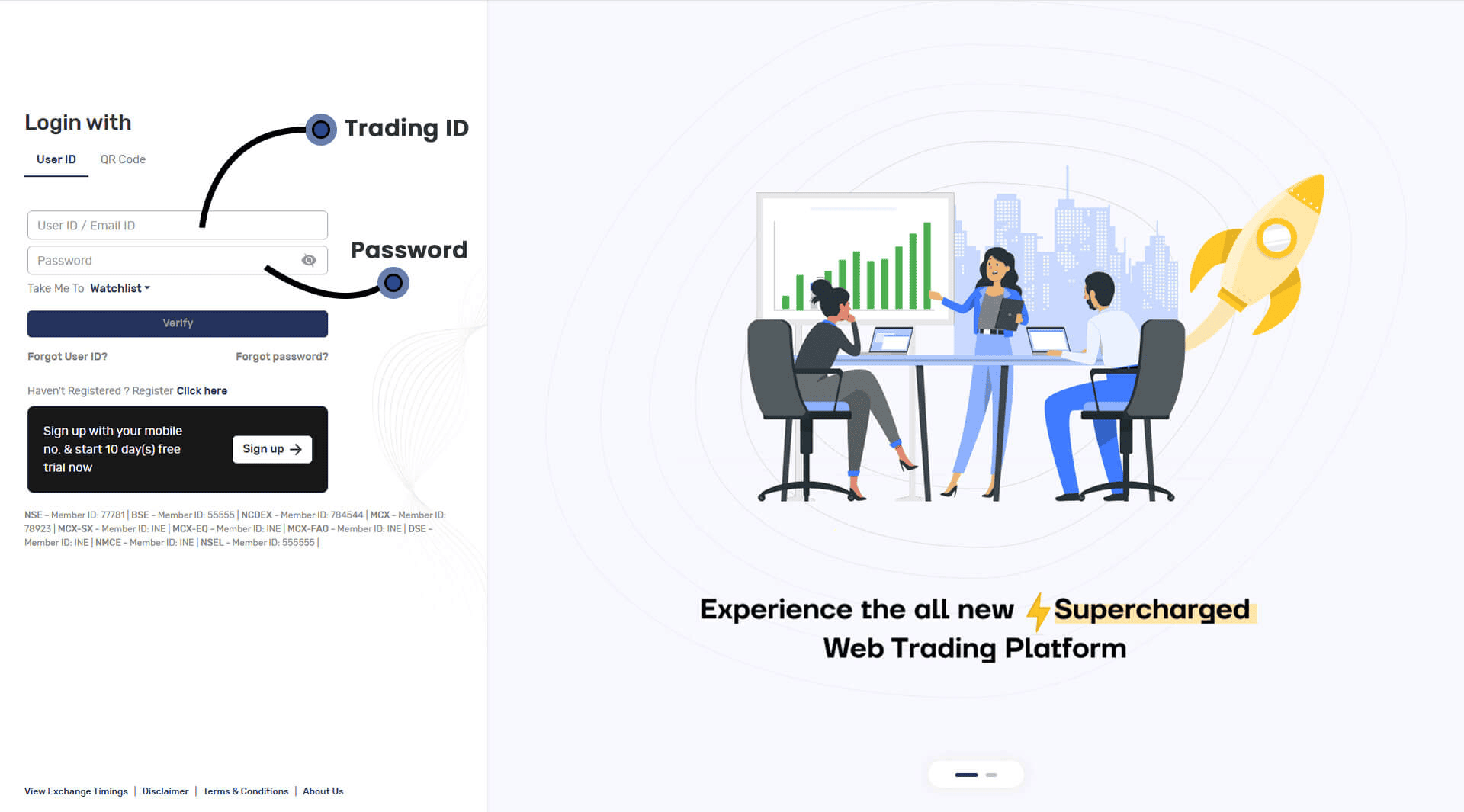
You can login to your account in 3 ways.
- Use your Trading ID, Password, and 2 Factor Authentication (OTP/TOTP).
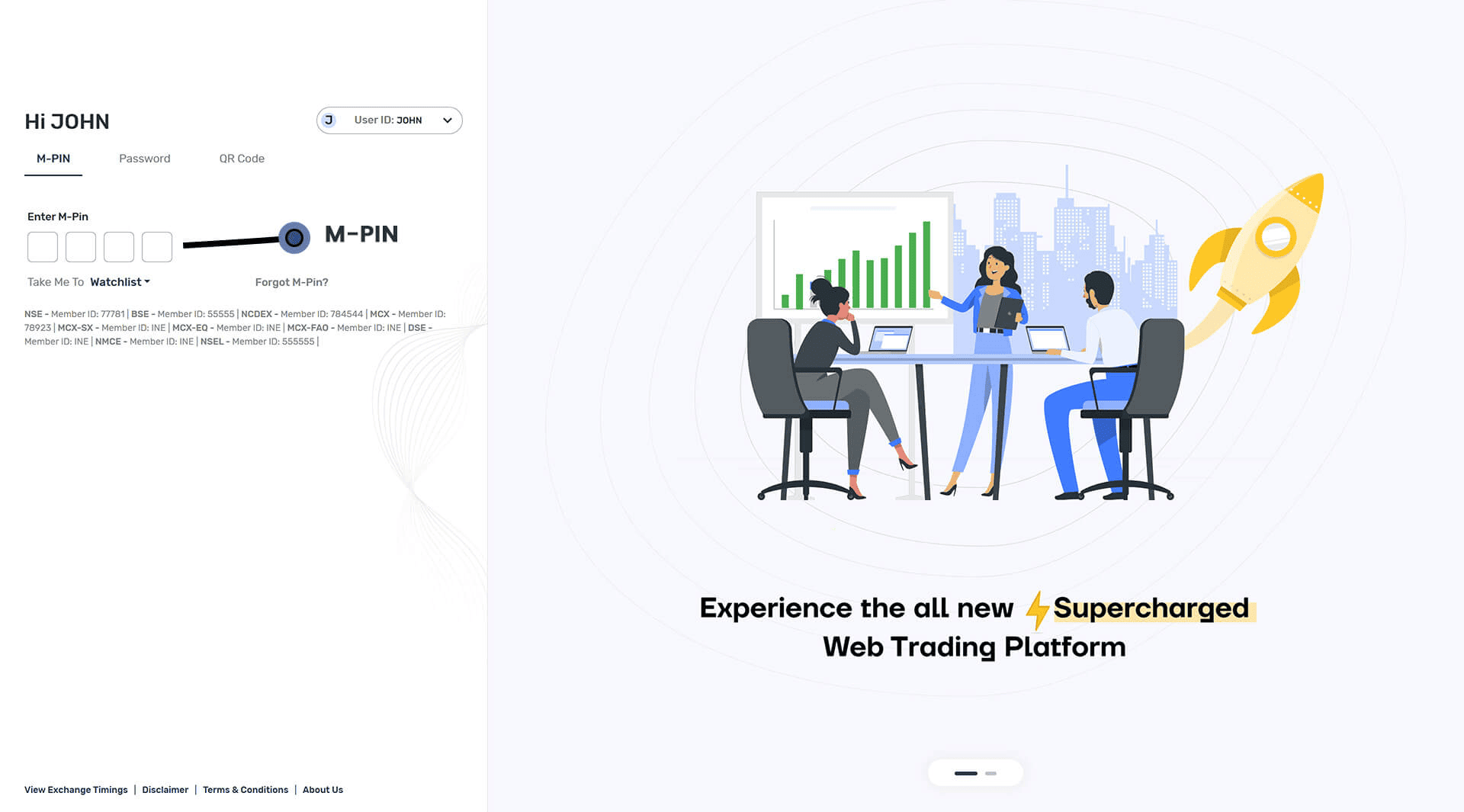
- Subsequent Login:
- You can use 4-digit MPIN or PASSWORD to login into application Click here to know more.
- Login with QR Code: You can choose below methods for login:
- Login to your account via our mobile application.
- Go to Settings from the Menu
- Select QR login option
- Point your phone to the above QR code to login to your account
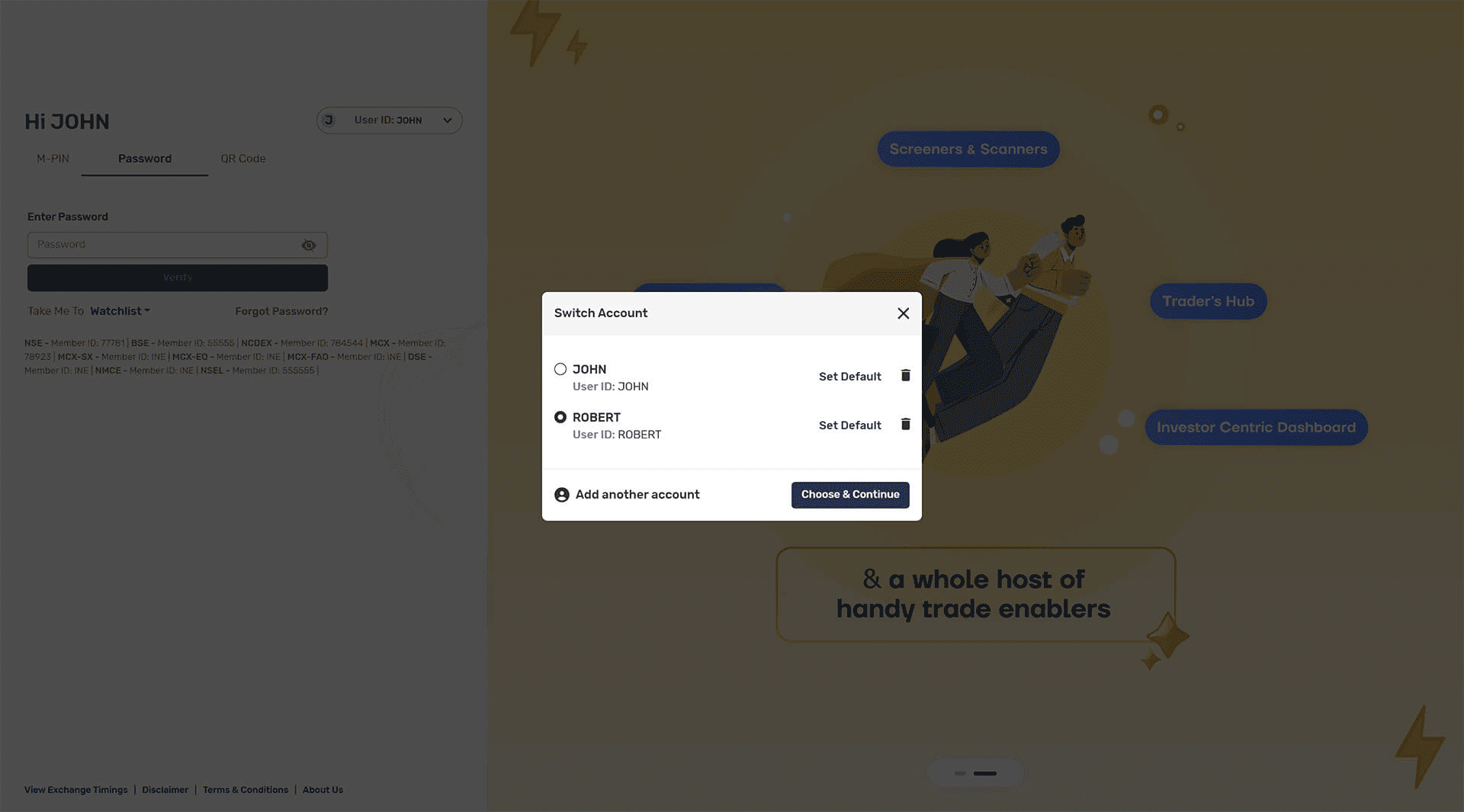
- Switch User: You can login with multiple accounts on single browser with switch user feature.
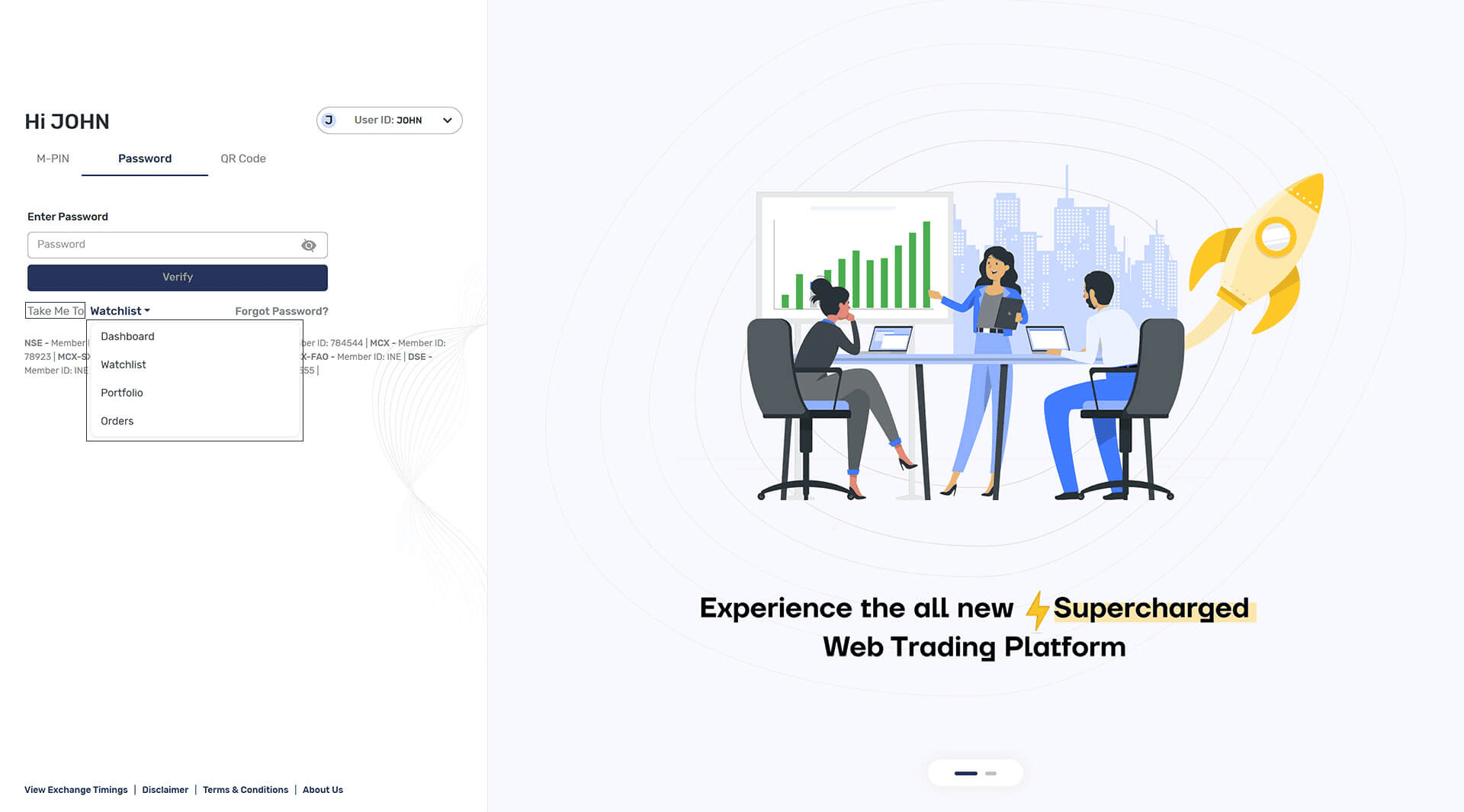
- Take me to: On login page, ‘Take me to' drop-down will take you directly to the page you want post login. The dropdown options are:
- 1.Dashboard
- 2.Watchlist
- 3.Portfolio
- 4.Orders

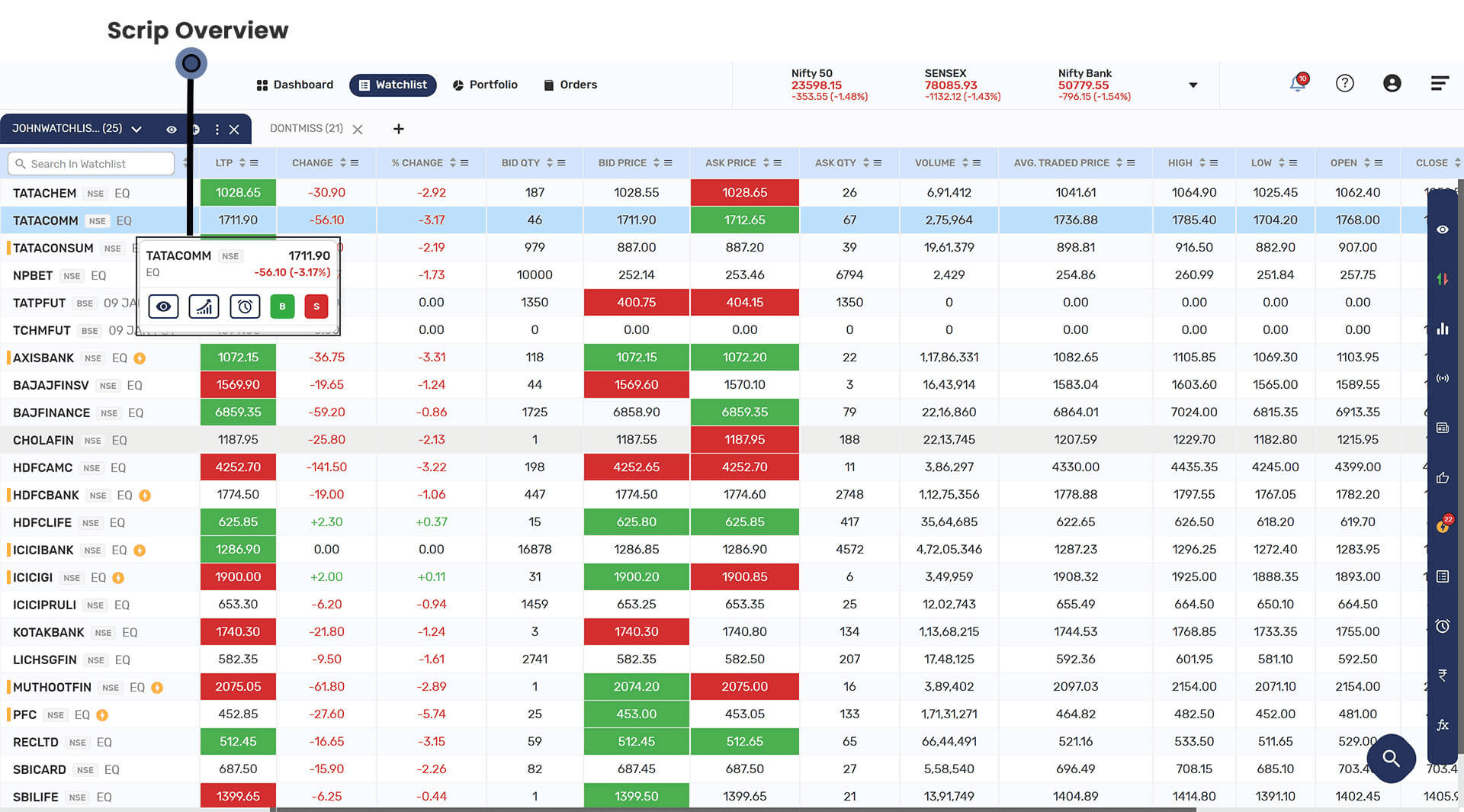
You will be able to view Scrip name, LTP and change from previous close and much more on the Watchlist and initiate trades from here. Clicking on any scrip in the Watchlist, will give you more options like Buy/Sell button  /
/  Scrip overview, don't miss info and set alerts.
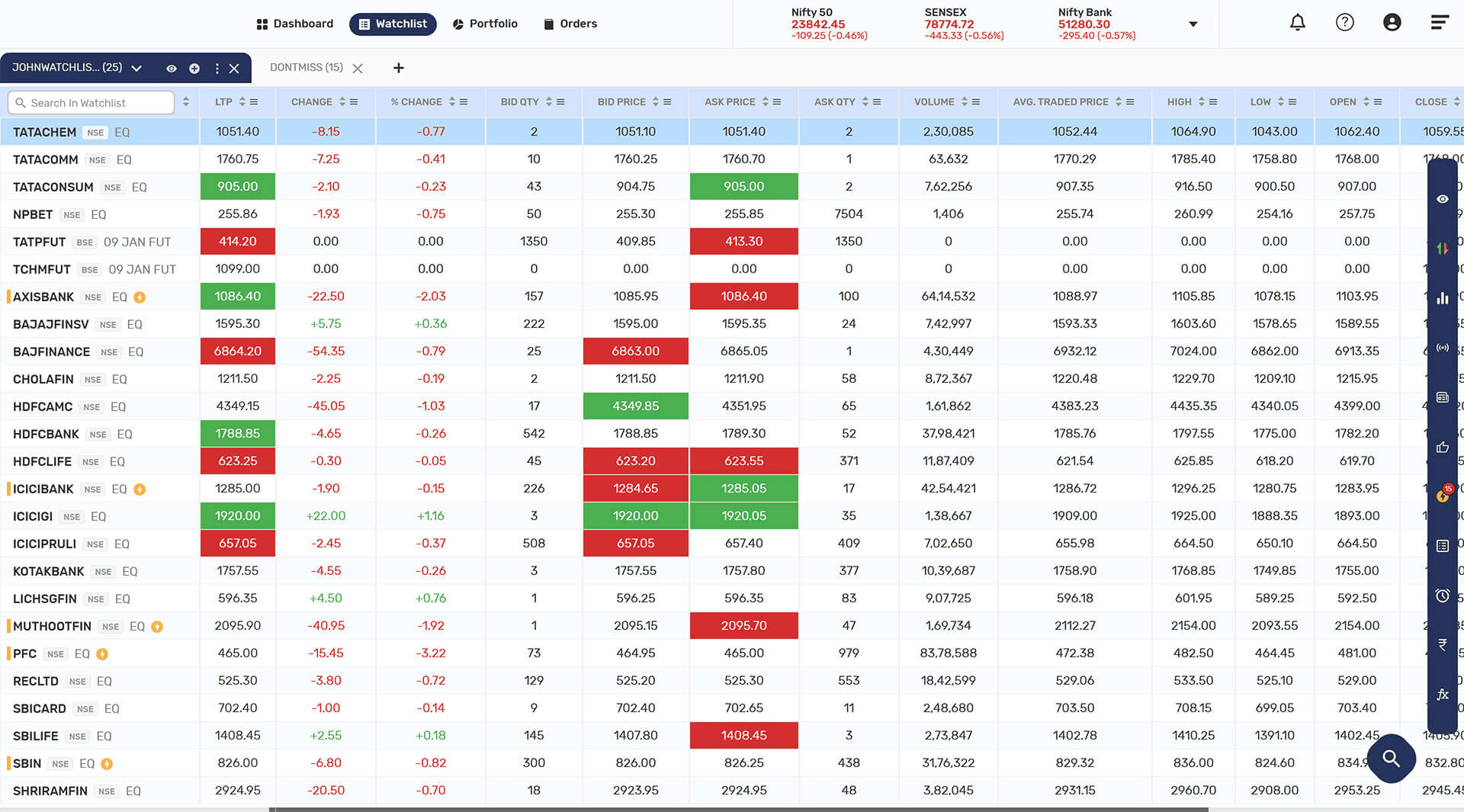
- Your watchlists tab have 4 options (
 ) Symbol, (
 ) Symbol, (
 ) Symbol, (
 ) Symbol Which are as follows:
- ( ) you can add scrips to watchlist.
- ( ) to change watchlist view to Price/Volume & Heat map View.
- ( ) More other options are as follows:
- Manage Columns: Along with the default columns the you can add, remove, and rearrange the customized columns from the options given.
- Add Scrip: You can add scrips to watchlist.
- Remove Scrip: The scrips can be removed from the watchlist.
- Reorder Scrip: You can rearrange the scrip in watchlist.
- Rename Watchlist: You can rename the watchlist.
- Set Default: You can set any watchlist as favourite from list.
- Share and download watchlist: You can share and download the watchlist.
- Create New Watchlist: You can create a new watchlist.
- Delete Watchlist: You can delete the watchlist.
- Default View: You can change your watchlist view to default view.
- Price/Volume View: By clicking this option, you can change watchlist view to Price/volume view which give more price and volume specific data.
- Heat Map View: Watchlist will arrange in block view on colour gradient as price movement and as per market capitalisation.
- ( ) to close selected watchlist.
- (
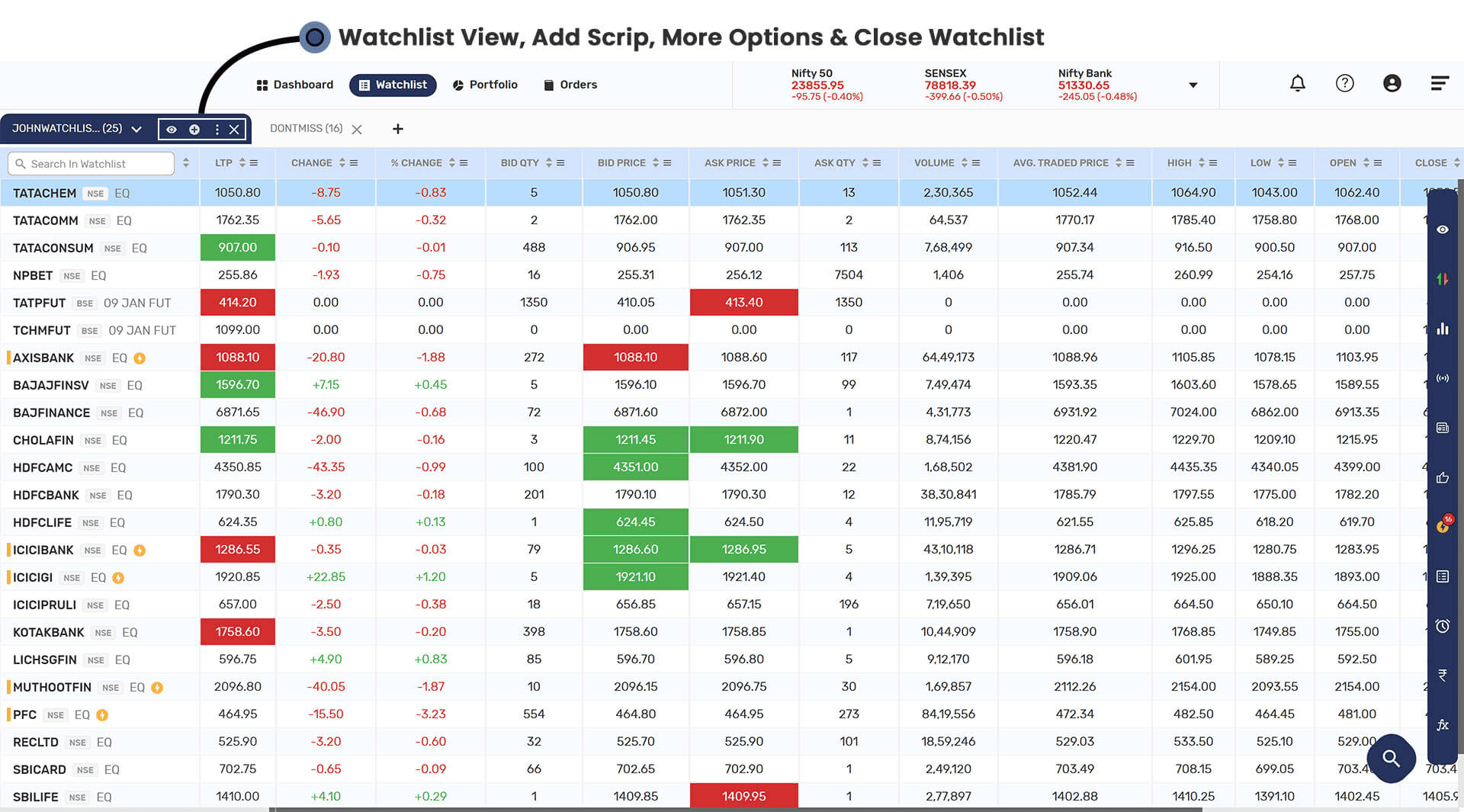
- You can change between your existing watchlist, where you will find pre-defined watchlist which is don’t miss watchlist and your holding as a watchlist.
- Don't miss Watchlist : The Application also creates a dedicated Watchlist to showcase the scrips which you should not miss. You can set the Don't Miss Watchlist as default by using the drop-down option the watchlist.
- Holdings : If you hold any of the scrips in your Watchlist, the application will highlight (portfolio) the no. of shares you hold along with the Unrealised Profit or Loss from the purchase price.

- Key Highlights
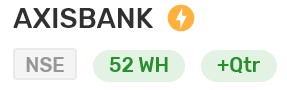
- Don't miss : The application scans all the scrips across all your Watchlists and intimates you in case there are any Key events in these scrips. You can view this section by scrolling down the Watchlist Screen.
- Tags : The system will show the key events in a scrip in your Watchlist by tagging them appropriately.
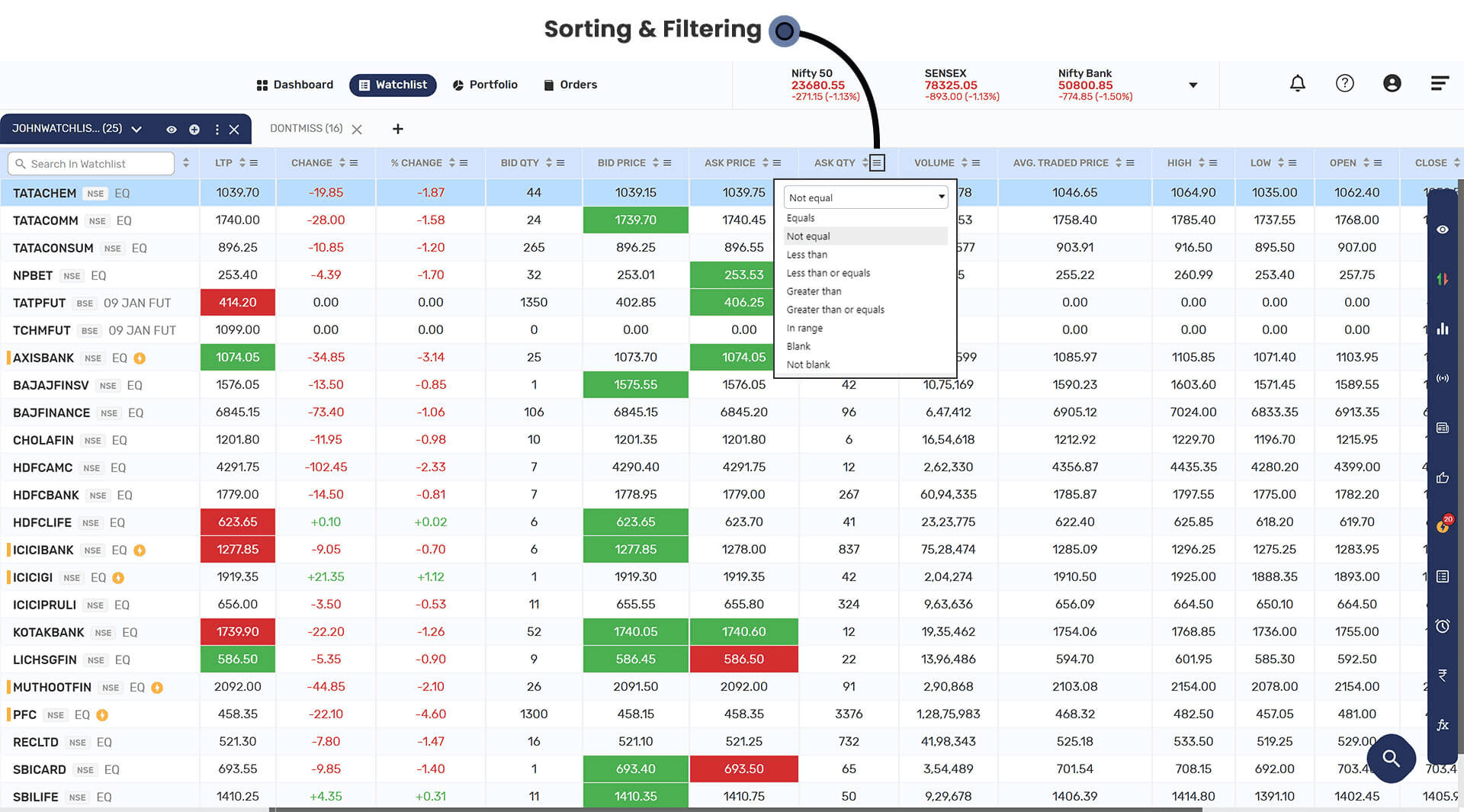
- Sorting & Filter you can apply filter on mathematical operators along with the Up and Down arrow which is given to arrange watchlist in ascending and descending order on price movement basis.
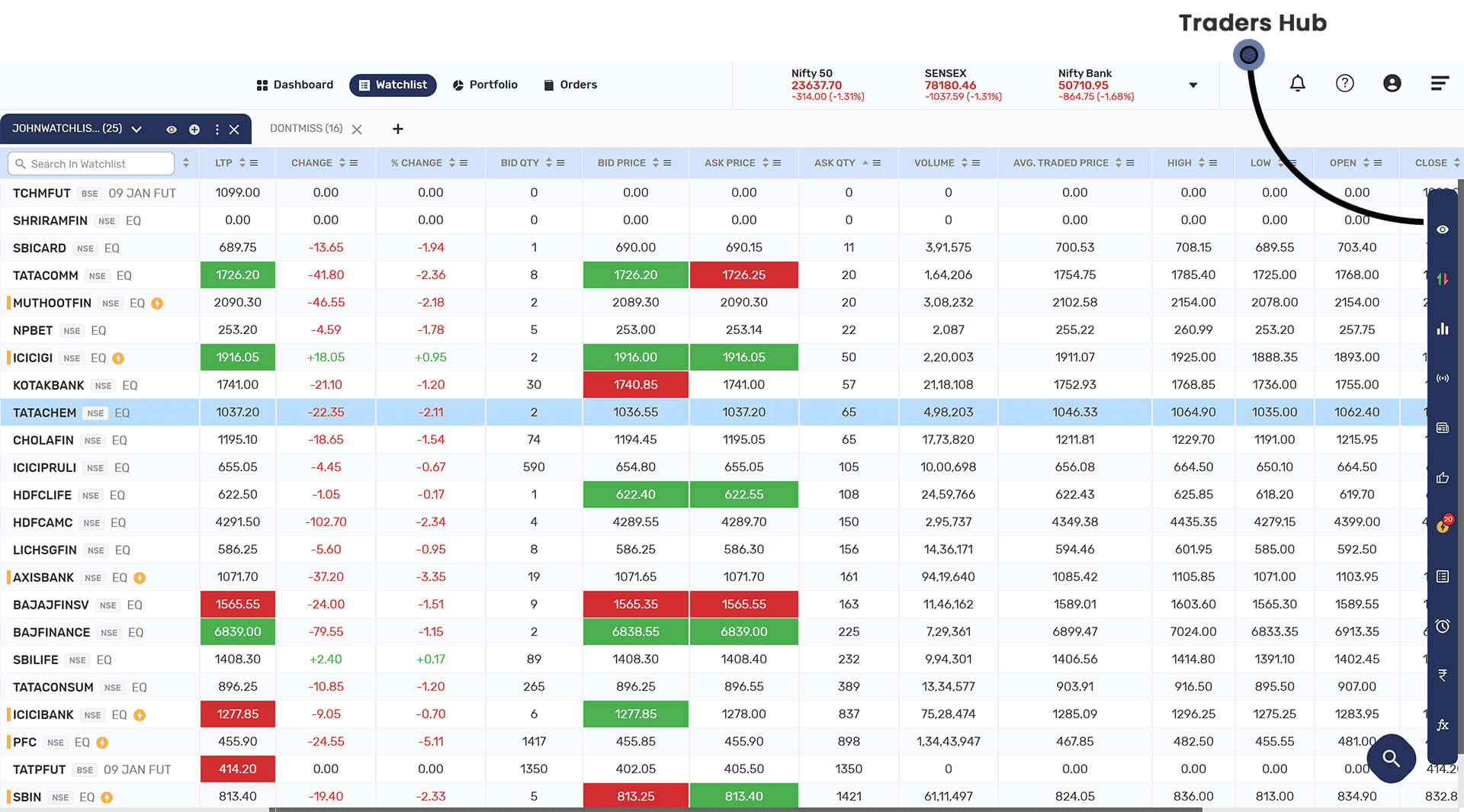
- Trader Hub - Right side of the screen there is a blue colour option of Trader Hub, the options are as follows:
- Charts: To access scrip chart
- Screeners: You will get to know the strategy overview, Scanners and mark my favourites.
- Recommendations: You will be able to see all the recommendations for this scrip here.
- Don’t Miss: The Application also creates a dedicated Watchlist to showcase the scrips which you should not miss. You can set the Don't Miss Watchlist as default by using the drop-down option the watchlist.
- News & Events: You can see all the latest and upcoming news and events for the scrip here.
- Orders, Position & Holdings The user can view the orders, positions, and holdings.
- Funds: You can make fund transactions directly through (₹) icon available on the watchlist.
- Calculators: The application has three essential calculators viz. Future Fair Value Calculator, Options Fair Value Calculator and Span Margin Calculator.
- Alerts: This section will show case all the alerts set by you on various scrips/contracts. You can also manage those alerts from this window.
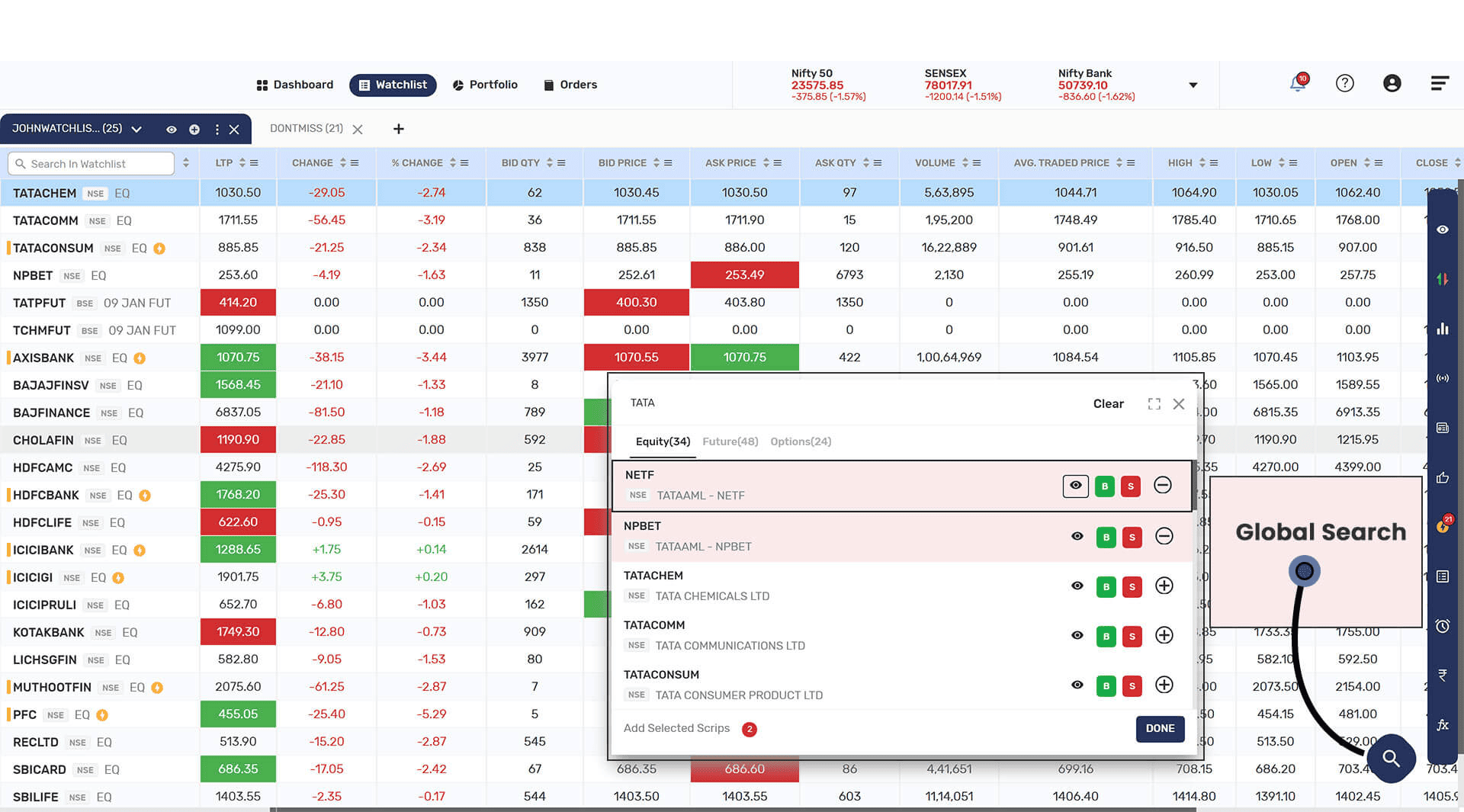
- Global Search: You will get search option at bottom of the pages across platform. On any scrip search you will get scrip available across segment, news, events, user notes, don’ t miss and much more.
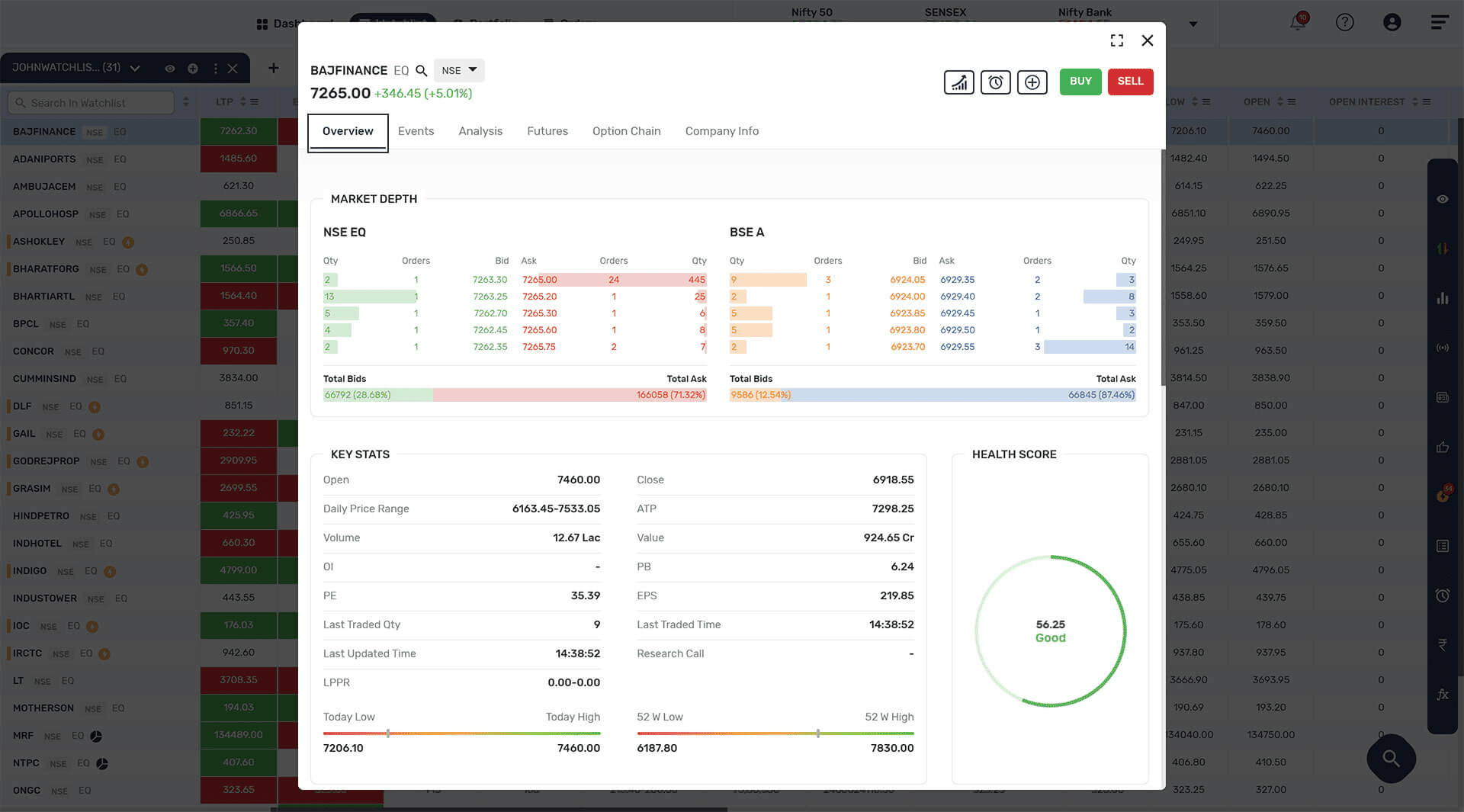
- You will get all the information of the scrip about the Overview, Set Alerts, News Events, Analysis, Futures, Option chain, Chart & company information.
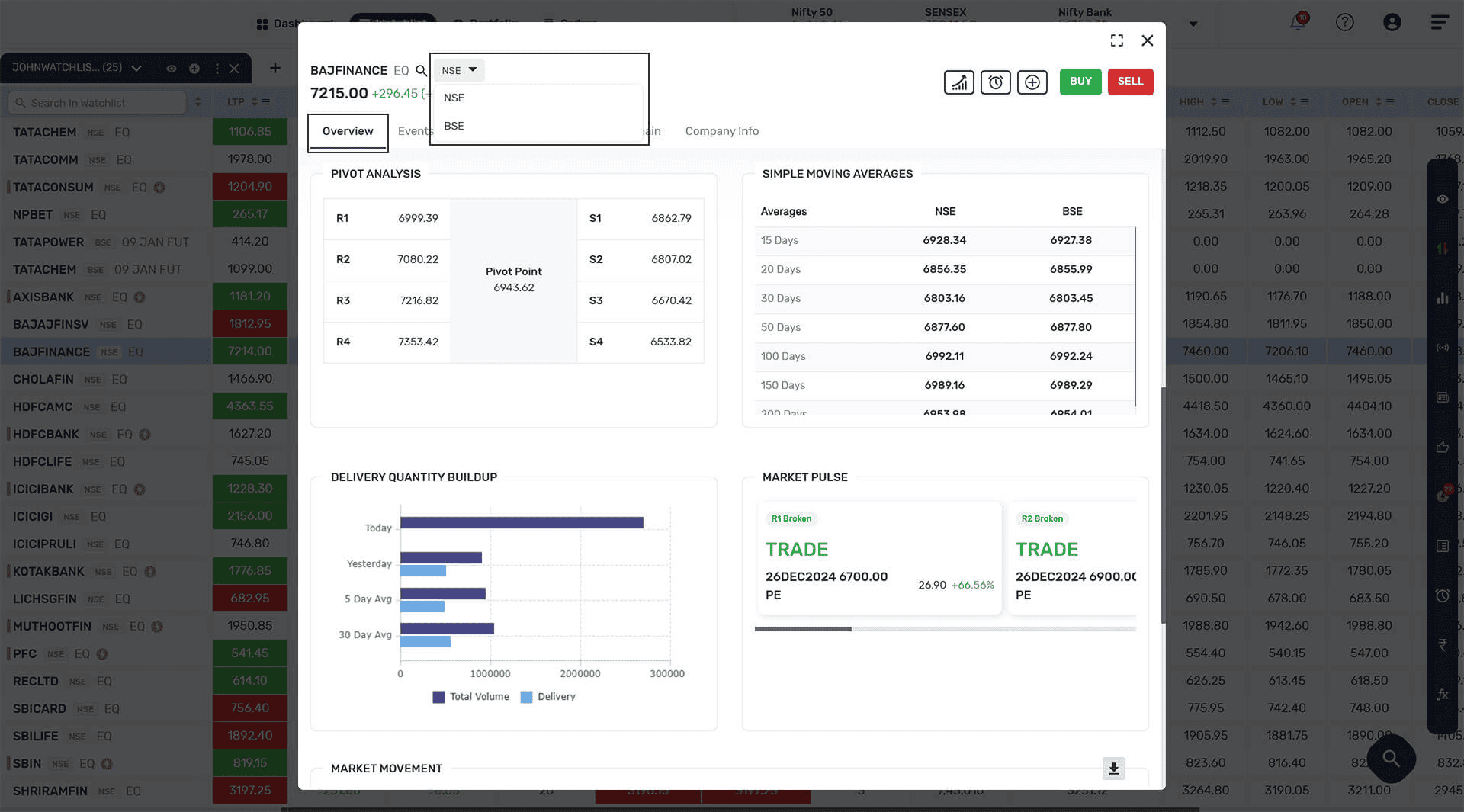
- OVERVIEW: In the overview, you will be able to see the market depth, key stats, support and resistance, and market movement.
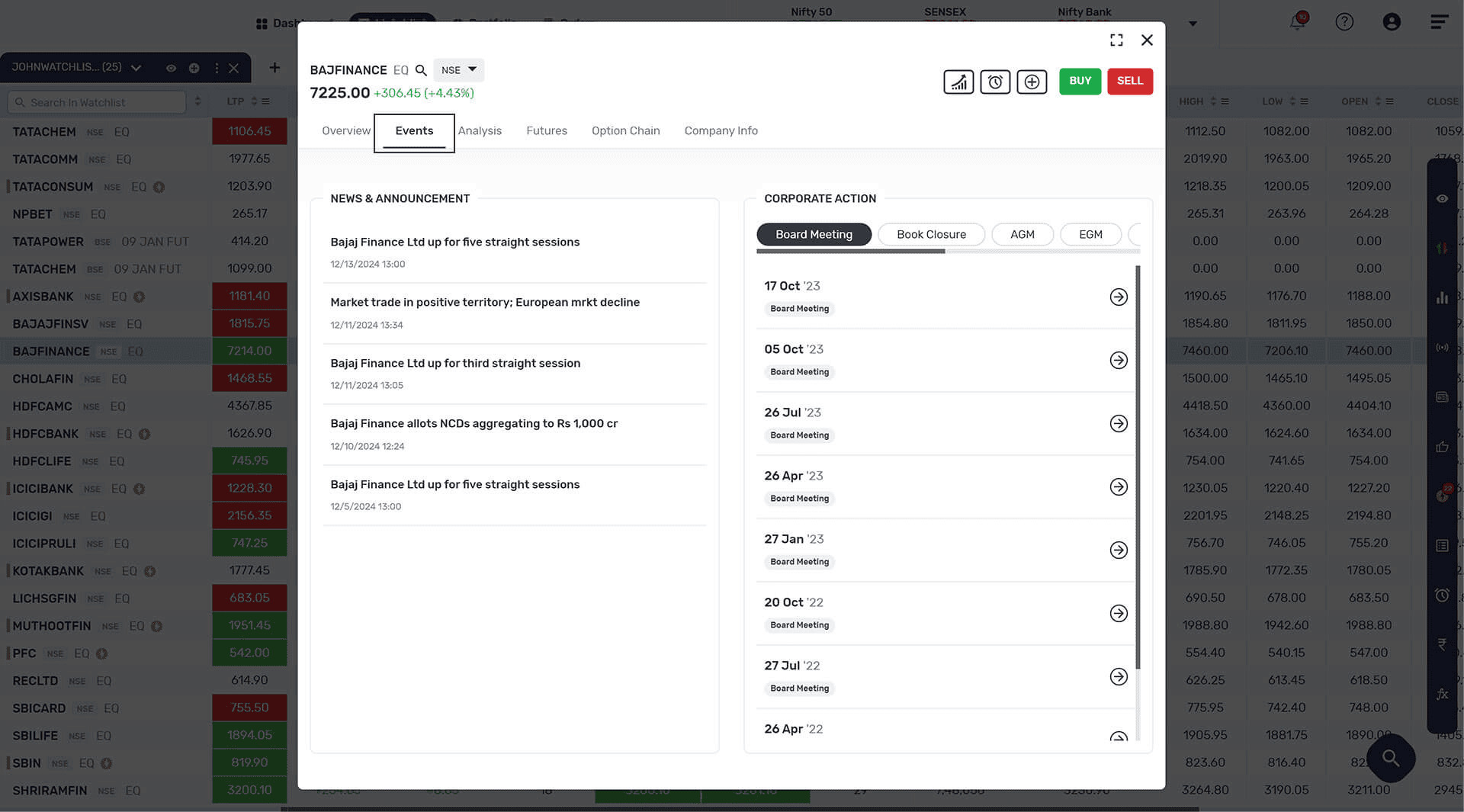
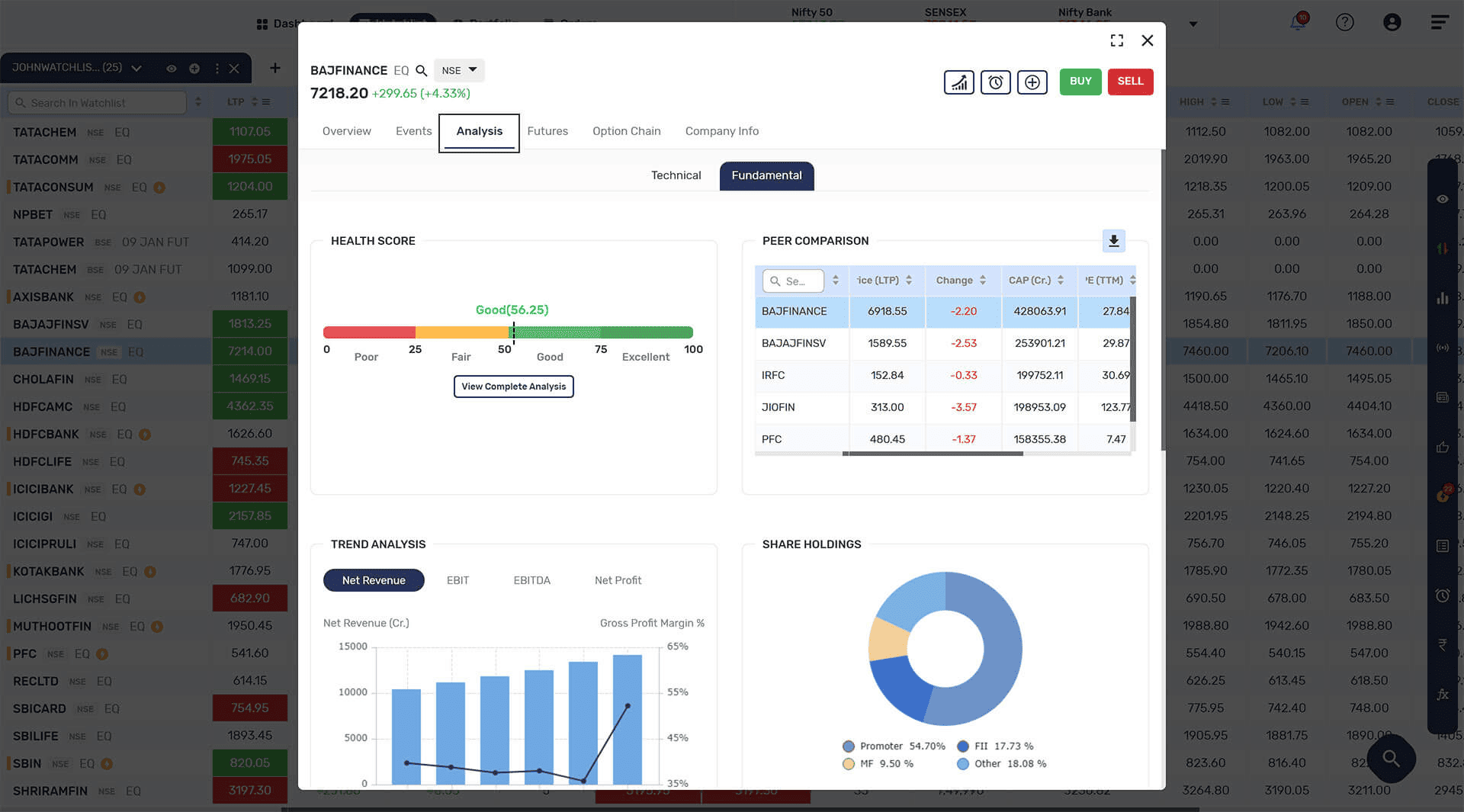
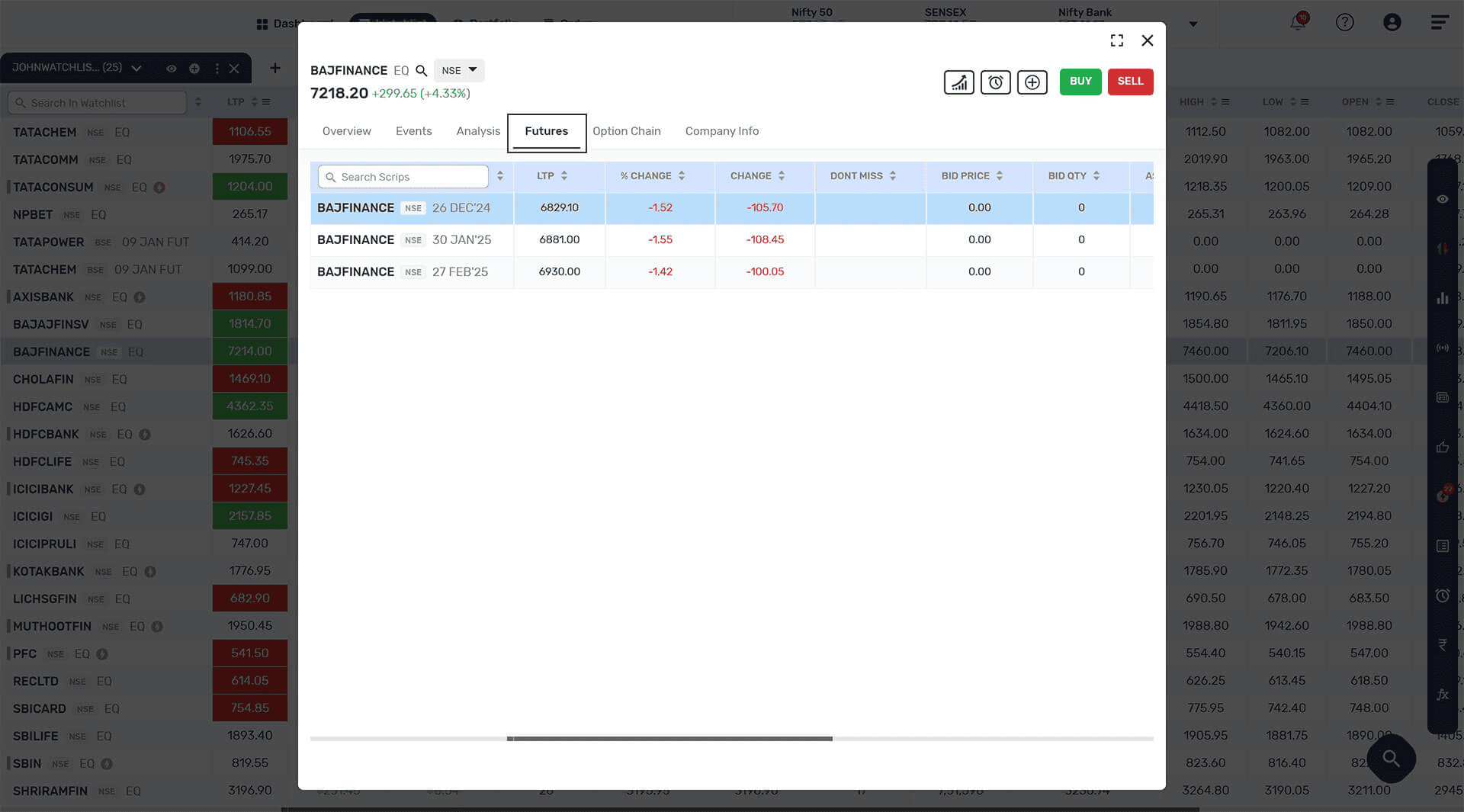
On click on any scrip a popup will appear with buy/sell button, scrip overview, alert setting, chart, holding info and don’t miss information. you will get technical, fundamental, and market related information under Scrip overview.
- Chart: (
 ) You can access the chart by clicking on the chart icon.
 - Alert: (
 ) You can set an alert for any scrip using the alarm symbol in the scrip overview. You can set multiple alerts for a scrip.
 - Icon: ( ) You can add scrip to you watchlist for scrip overview.
- Chart: (
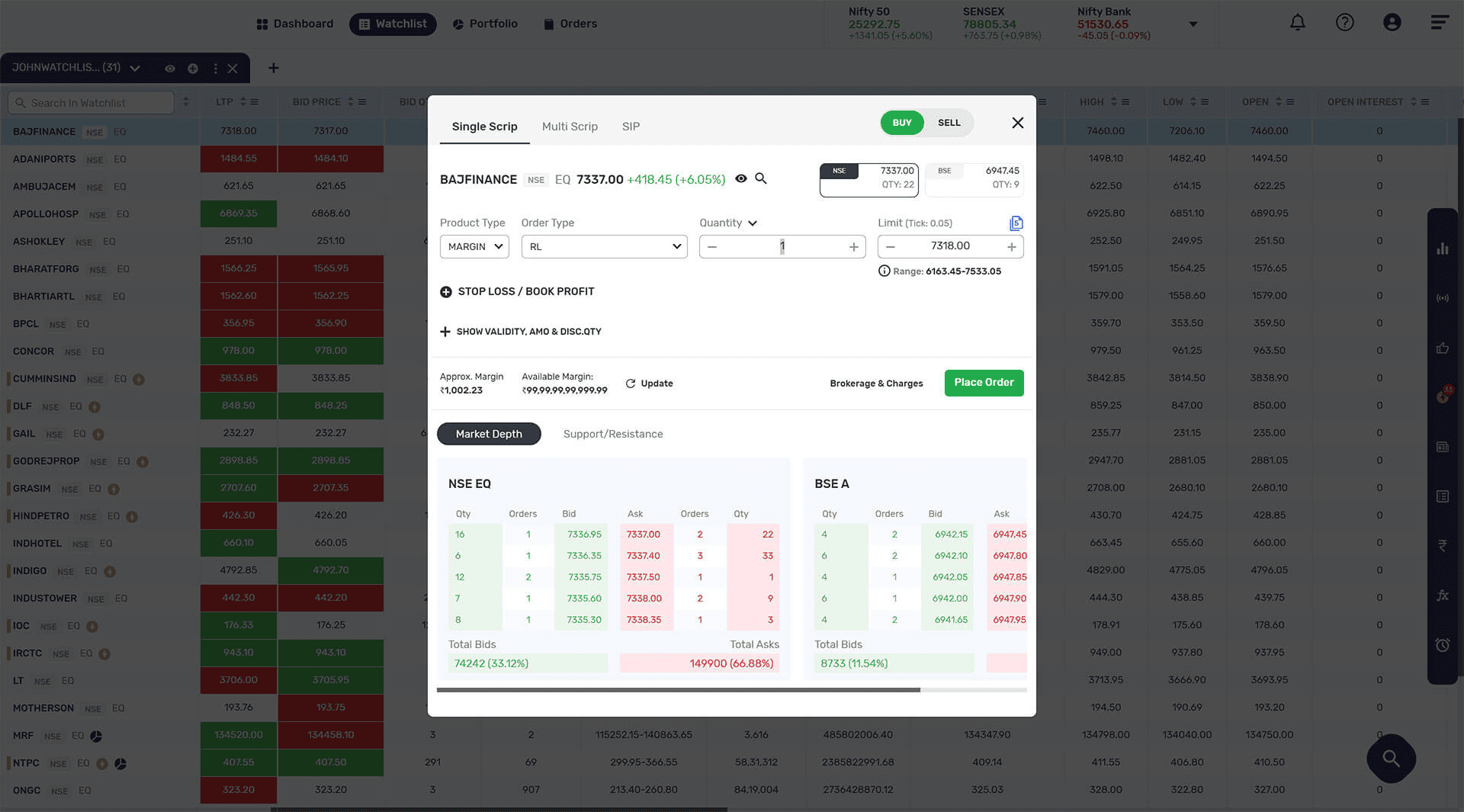
- COMBINE MARKET DEPTH: you can view combined market liquidity for a scrip based on the number of standing orders to buy (bids) and sell (offers) at various price levels for both exchanges. You can pick price for placing orders from market depth.
- KEY STATS: You can view key stats of scrip like 52 weeks high and low, Open, and close, day low-high, Average trading price, Value, Volume, Last traded time etc.
- SUPPORT & RESISTANCE: you can see the pivot point and support & resistance up to four levels.
- MOVING AVERAGES: You can see the moving average of a scrip from 15 days to 200 days for both the exchanges
- DELIVERY QUANTITY BUILDUP: you can see 30 days average delivery quantity buildup in scrip overview
- MARKET PULSE: you can able to view all price action happening in derivatives of underlying scrip.
- MARKET MOVEMENT: you can view scrip price Movement over a period of 5, 10, 15, and 60 minutes.
- NEWS & EVENTS: You can see all the latest and upcoming news and announcement for the scrip.
- ANALYSIS: You can get the complete overview of technical and fundamental data of a scrip.
- FUTURES TAB: You can see all the future contracts along with premium discount value of the underlying scrip and initiate trade from here.
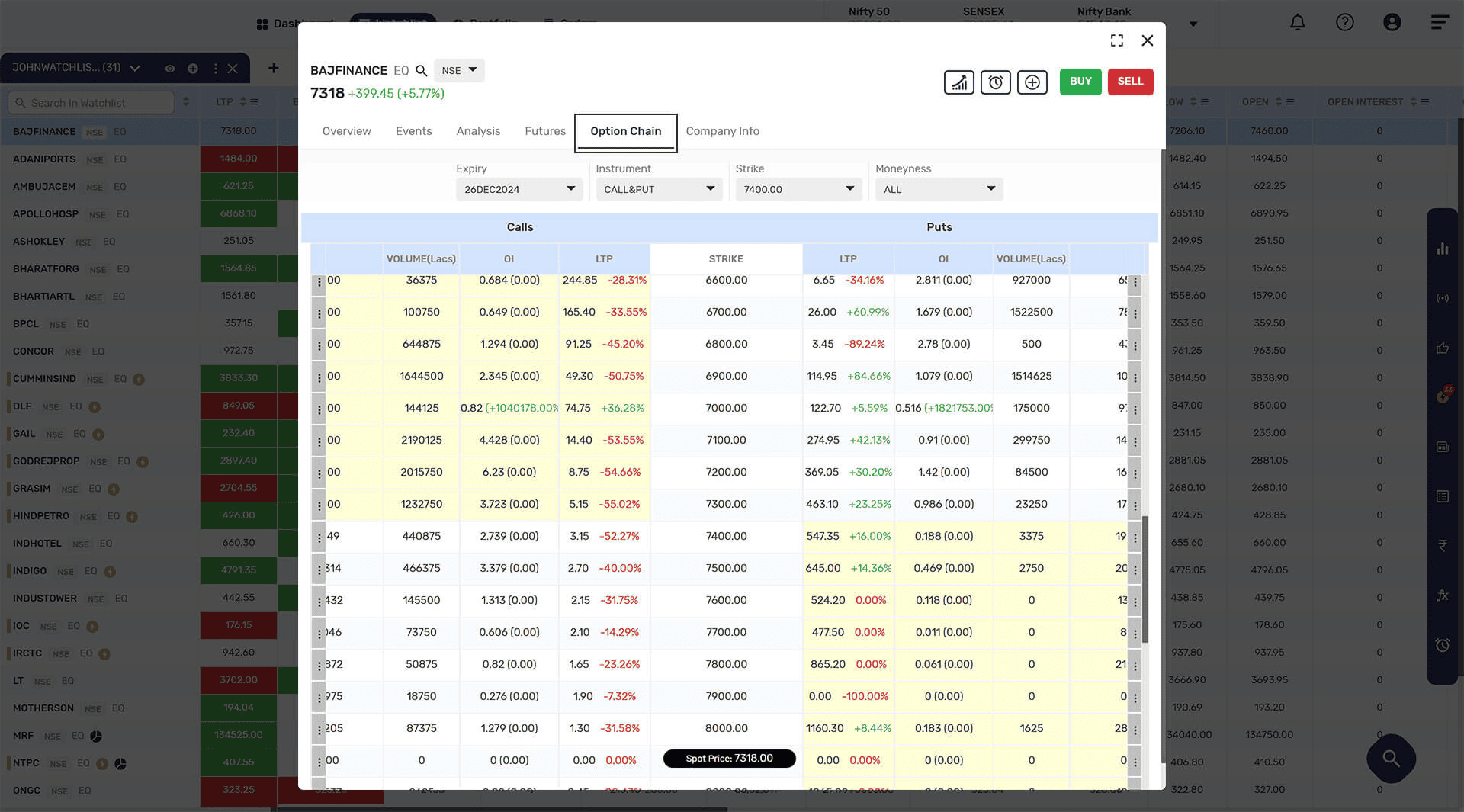
- OPTION CHAIN: You can see the option chain for the underlying scrip and initiate single / multileg trade from here.
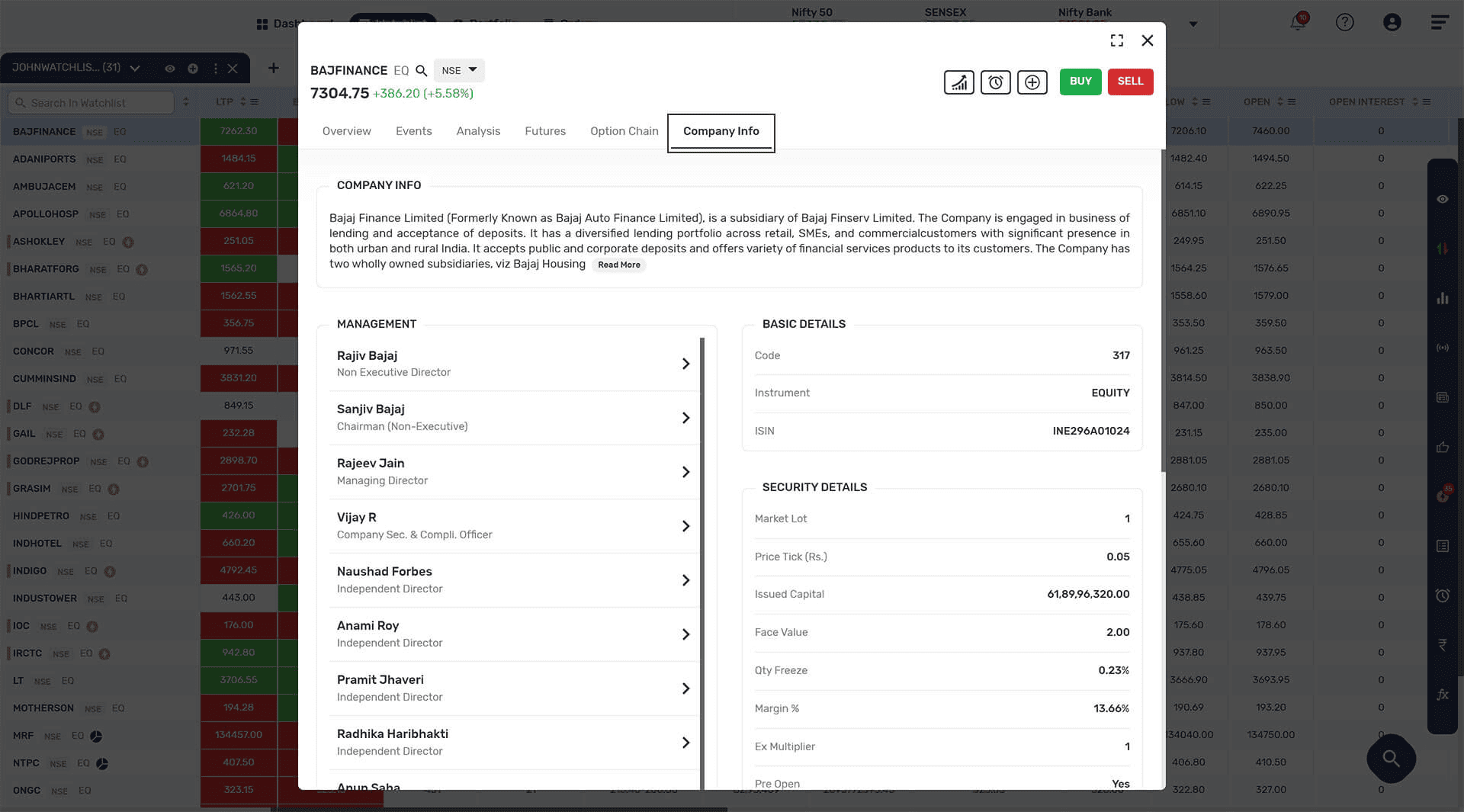
- COMPANY INFO: All the required company information is provided here like about the company, the management, security details, book closure/record data, listing of the company, the contact information of register address, the head office, and registrar.
- The application is designed to provide you with the most humanized experience of trading and order execution. You can initiate the Order Entry from multiple places.
- You can initiate orders from 3 ways:
- Watchlist: When you click on any scrip in the watchlist, you will see buy and sell buttons to place your order.
- Scrip Overview: You can initiate orders from scrip overview.
- Keyboard: You can initiate orders using your keyboard. Press F1 for buy orders and F2 for sell orders.
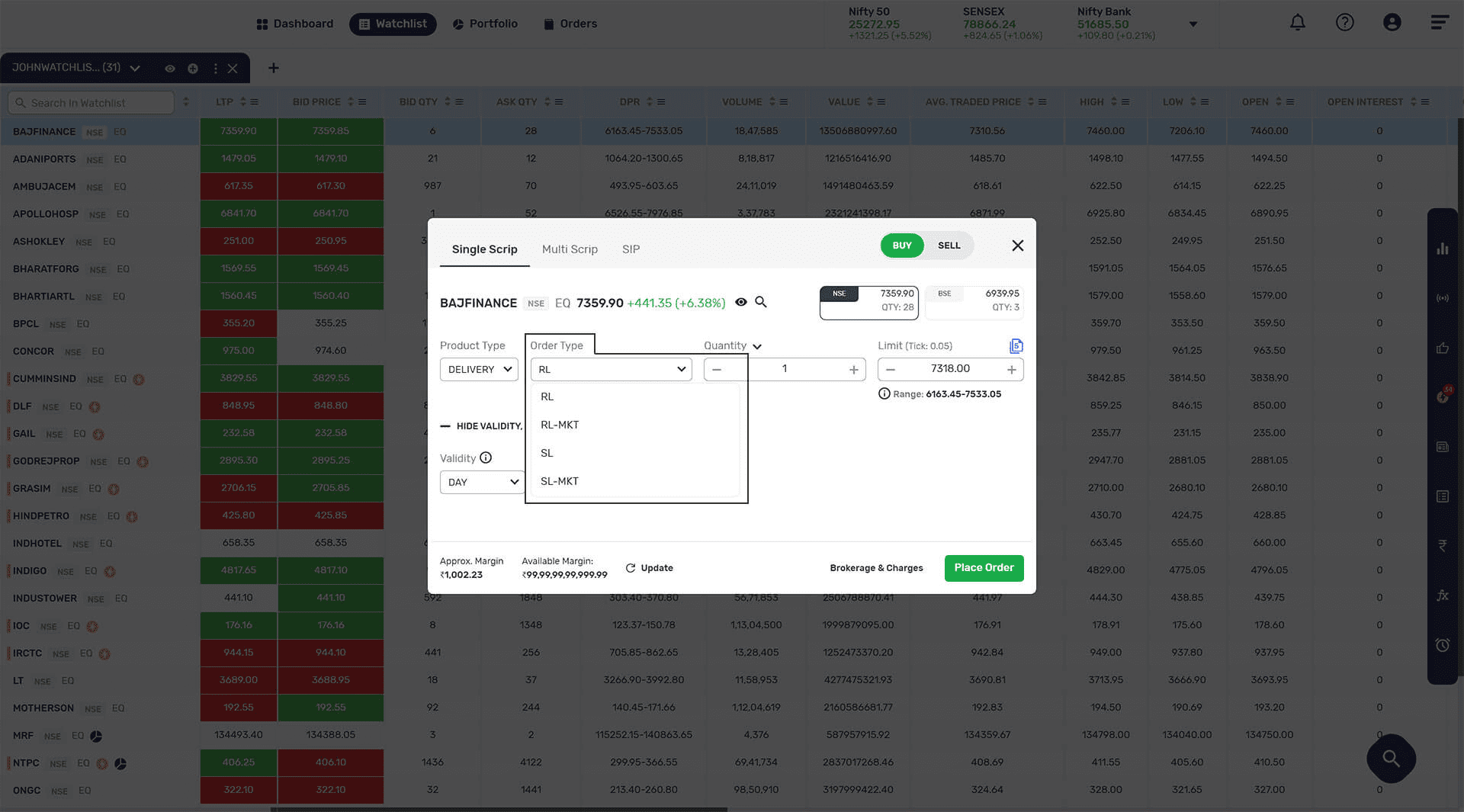
- ORDER TYPES: You can place four types of order i.e. Regular Order, Regular Market Order, Stop Loss Order, and Stop Loss Market Order.
- REGULAR ORDER: In other words user can place limit order at predefined price. In this type of order, the exchange will match the order price and only execute the quantity which matches the desired price.
- REGULAR MARKET ORDER: If you want to ensure quick execution of an order you should use the Market Order option. In this type of order, the exchange will match the order quantity at the best possible price to ensure complete execution.
- STOP LOSS ORDER: Stop Loss Order works like a safety for your investments. Before executing the order, you can set the price lower than the current stock value, after the stock value hits the stop loss you will bear only the minimum loss.
- STOP LOSS MARKET ORDER: If the price which you want to execute your order is not yet traded and you want to wait till the desired price (Trigger price) is available in the exchange to submit your order, you should use the Stop Loss Trigger Order Option.
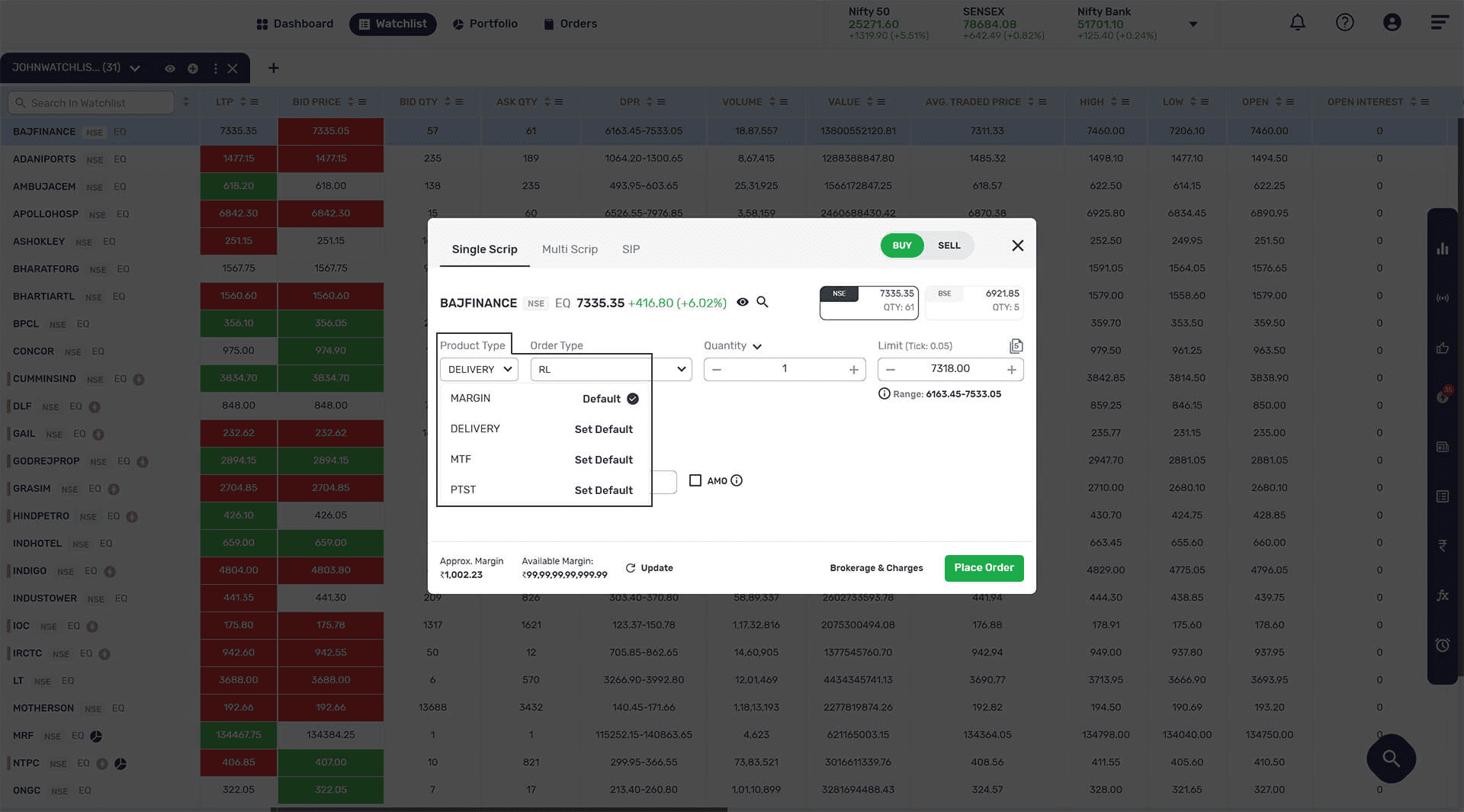
- PRODUCT TYPES:
- Delivery: Once these orders are executed and the position can be carried for long term.
- Margin/intraday: These orders are executed for a particular day only i.e. Intraday Orders. The orders are automatically squared off at the end of the day if you do not square off the same.
- MTF (Margin Trading Facility): These orders function the same as Delivery order, but the Margin/Fund required for execution is usually less than that required for Delivery order. This function is subject to authorisation, contact us for the same.
- PTST (Purchase today Sell tomorrow): Once these orders are executed, they are automatically squared off the next day, if you do not square off before square off time the next day.
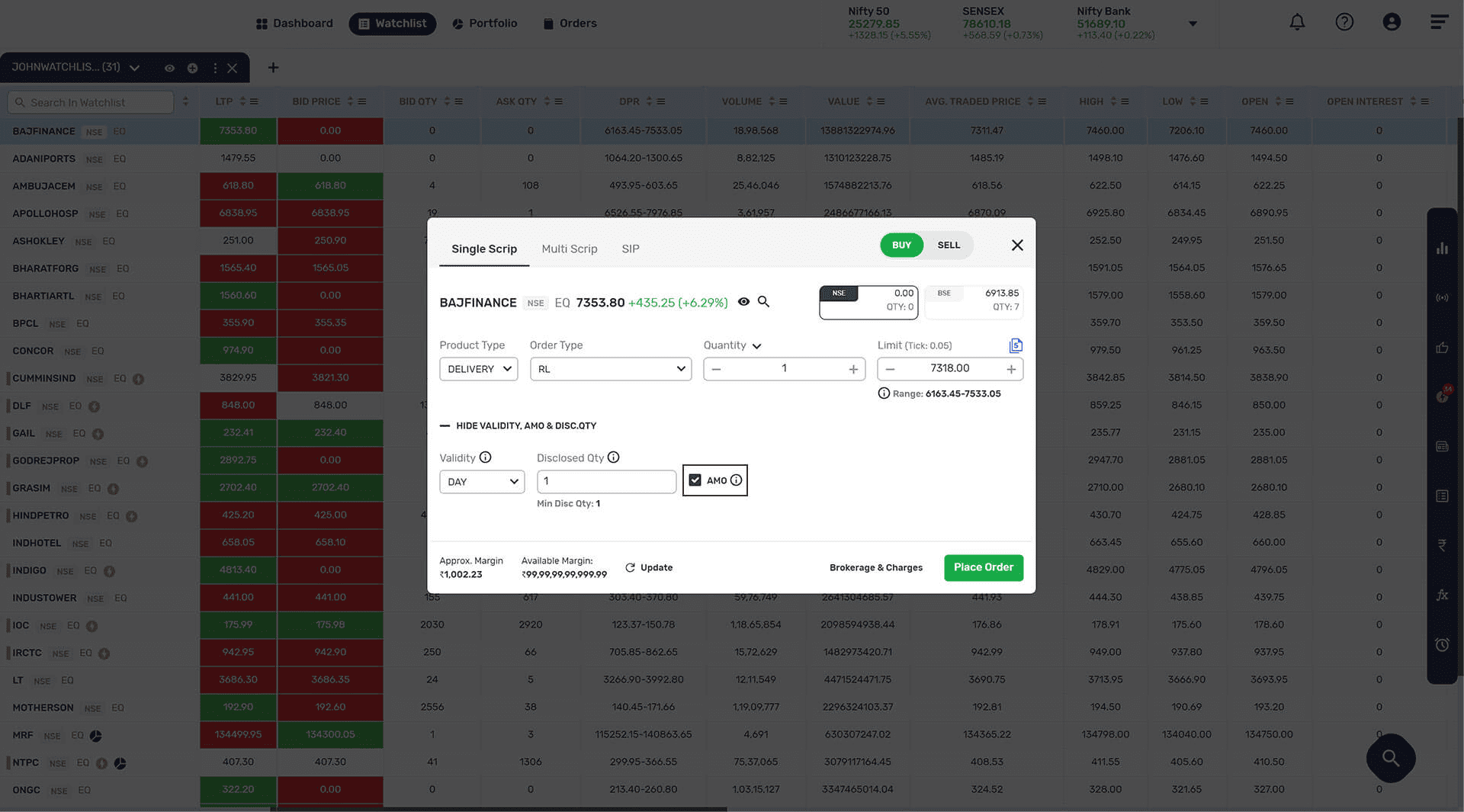
- AMO: Below, there is also an option of Show AMO and Disc quantity. The user can click on the option, enter the disclosed quantity and tick the AMO box if needed.
- MARGIN INFO: Below, you can also get more information about the brokerage and charges, Approx. margin, available margin.
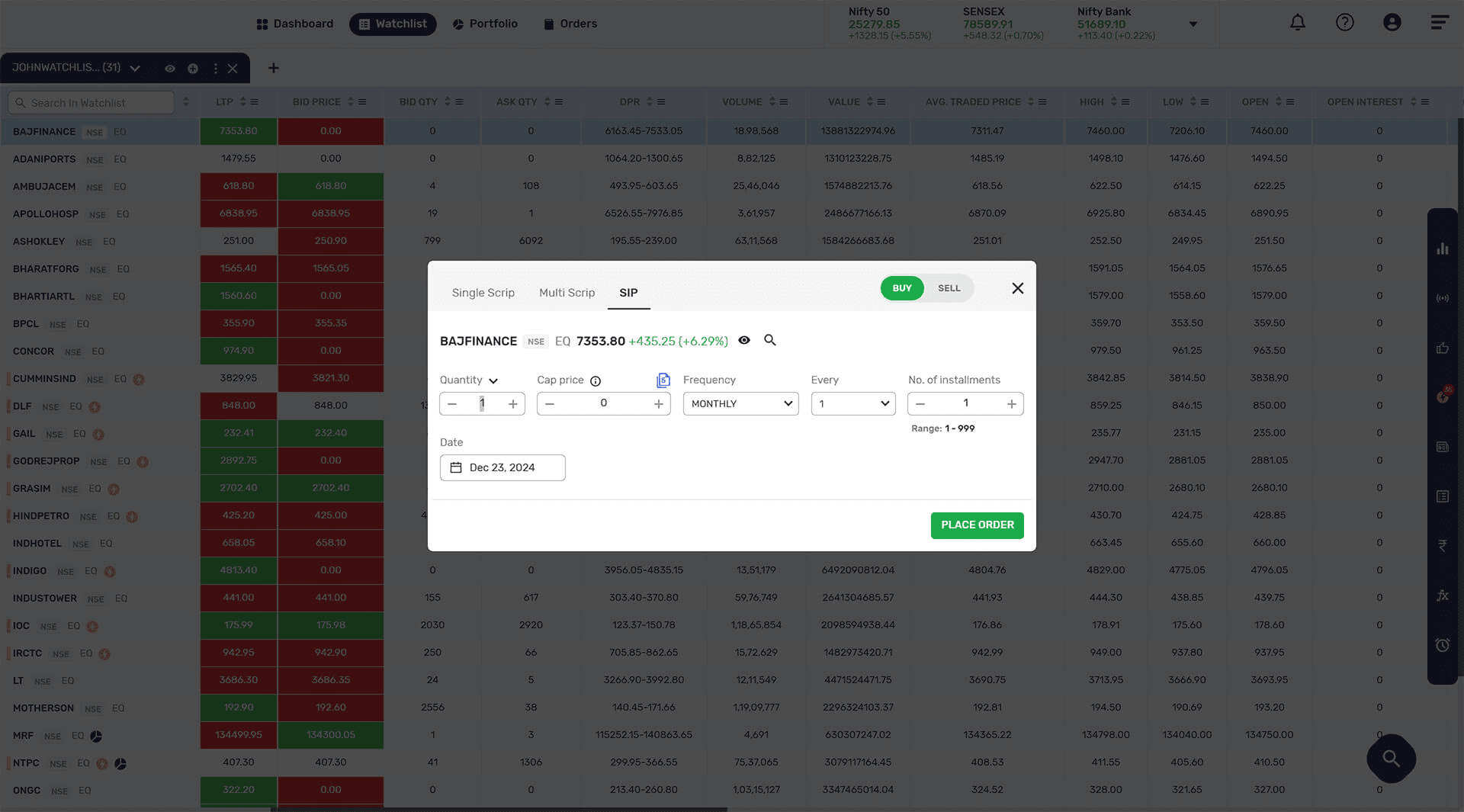
- EQ SIP: Besides the Single Scrip, there is also an option for an Equity SIP, which you can do for any scrip.
To set up an Equity SIP, you must fill the details which are as follows:
- Quantity: Define quantity here.
- Cap Price: Enter the cap price at which the user is willing to purchase shares.
- Frequency: Whether the instalments should be monthly, forthrightly, weekly, or daily.
- No. of Instalments According to the frequency, the user can define the number of instalments.
- Date: Set the start date.
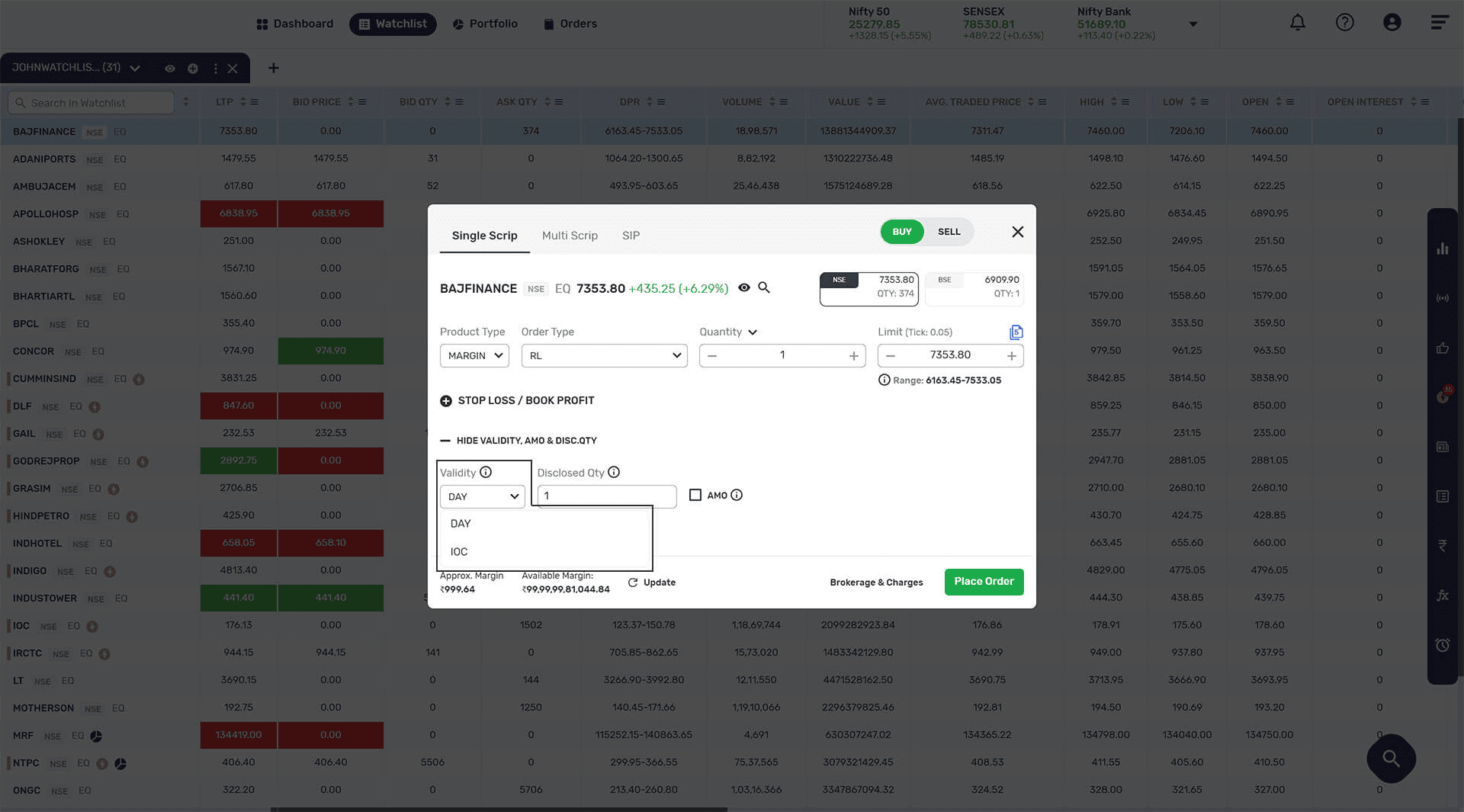
- ORDER VALIDITY:
- Day : Day orders are only valid for one trading day. If day orders are not executed within the span of a trading day, they stand cancelled.
- GTD : Order which remains active in the system till user define specific date unless it has already been executed or cancelled.
- IOC : You can use an IOC order to execute a trade immediately or cancel it.
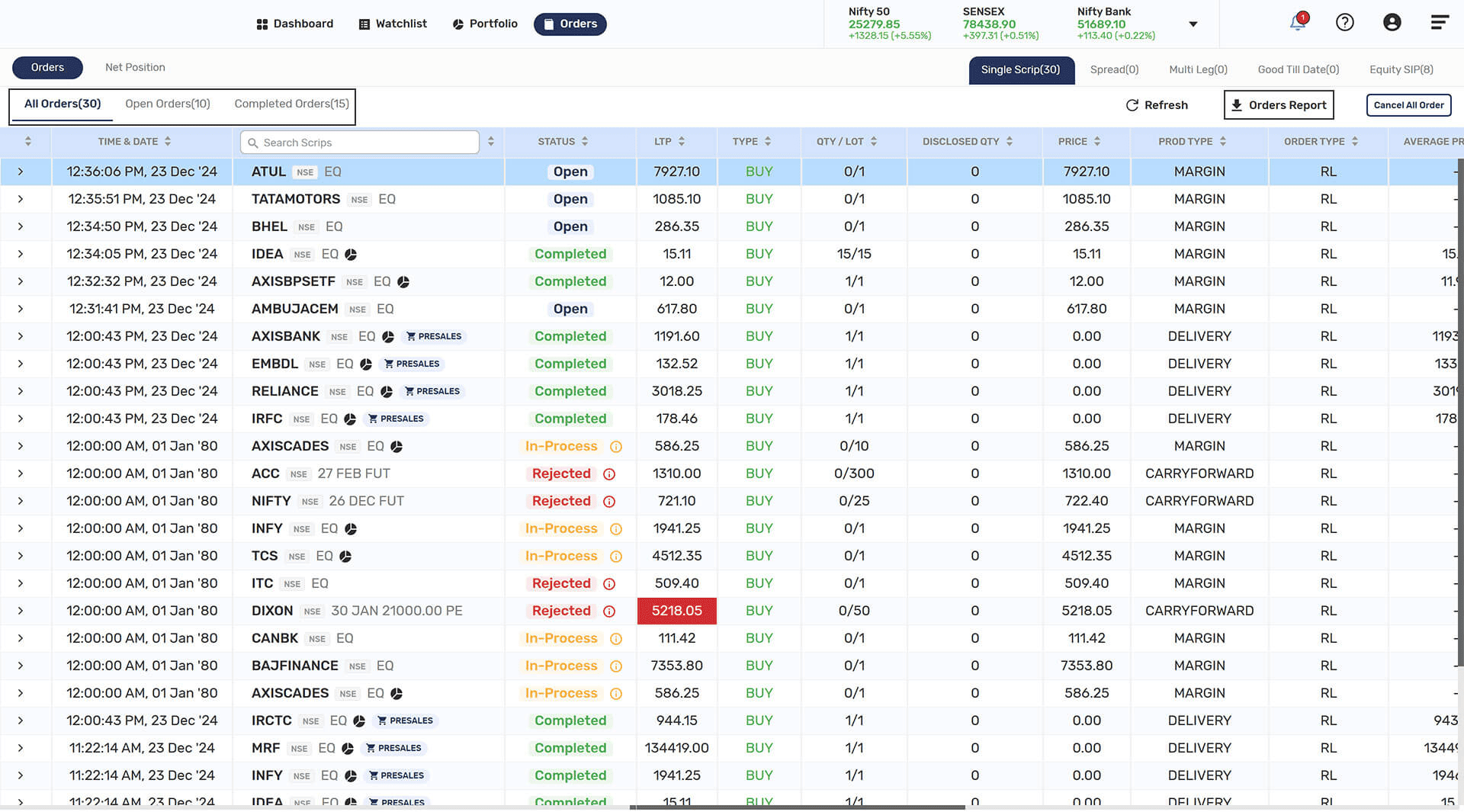
- This is a single window to know all about the Orders you have placed and Positions that you hold. This single window gives you all the details which you were able to get from Order Book, Trade Book, and Net Position window.
- All Order: Shows the details of all the orders executed today.
- Open Order: Pending orders are displayed here.
- Completed Order: Shows the details of the fully executed in exchange and cancelled order.
- Order Report: You can get your order report in the following format:
 PDF Format (.pdf)
 Microsoft Excel (.xlxs)
 Comma Separated values (.csv)
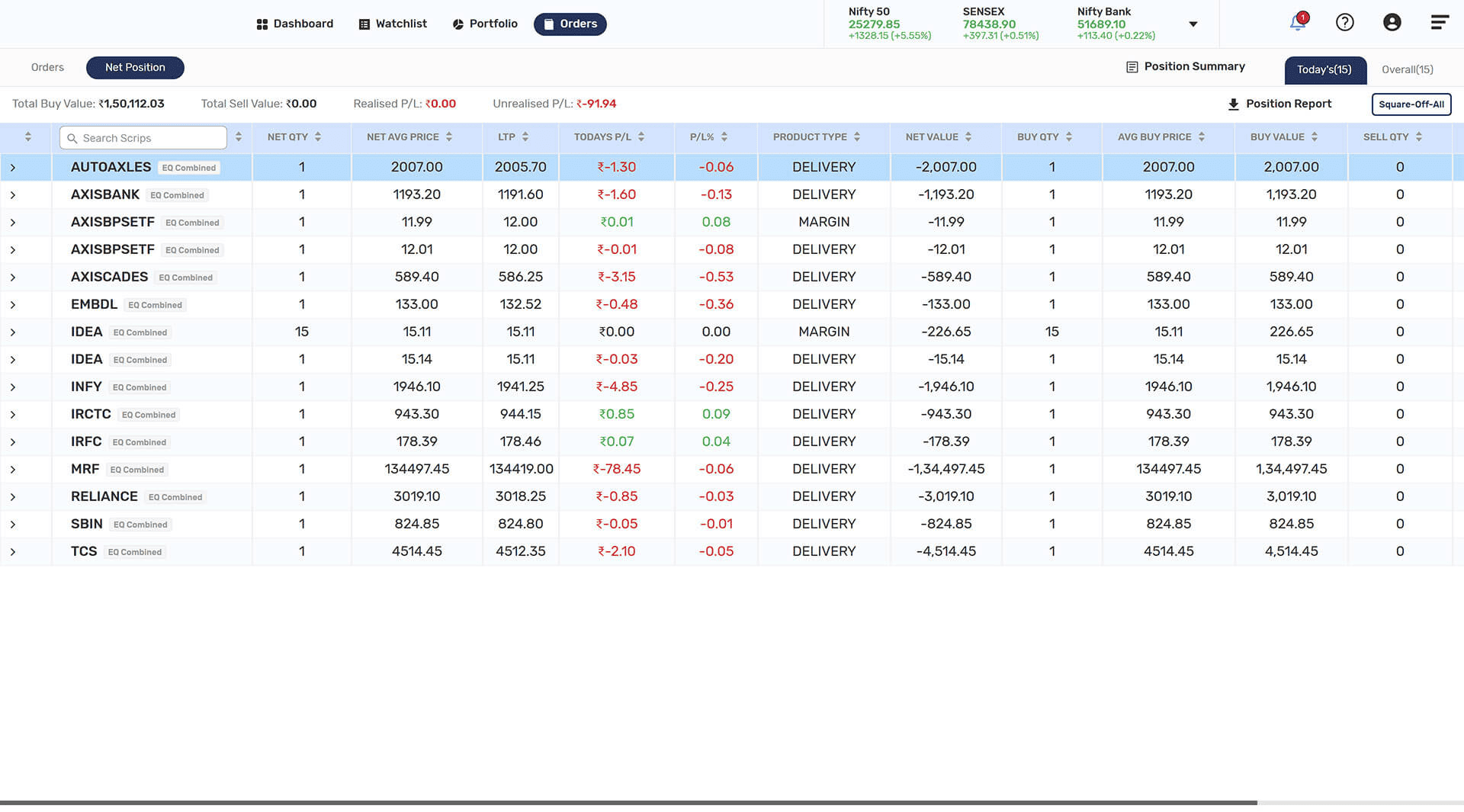
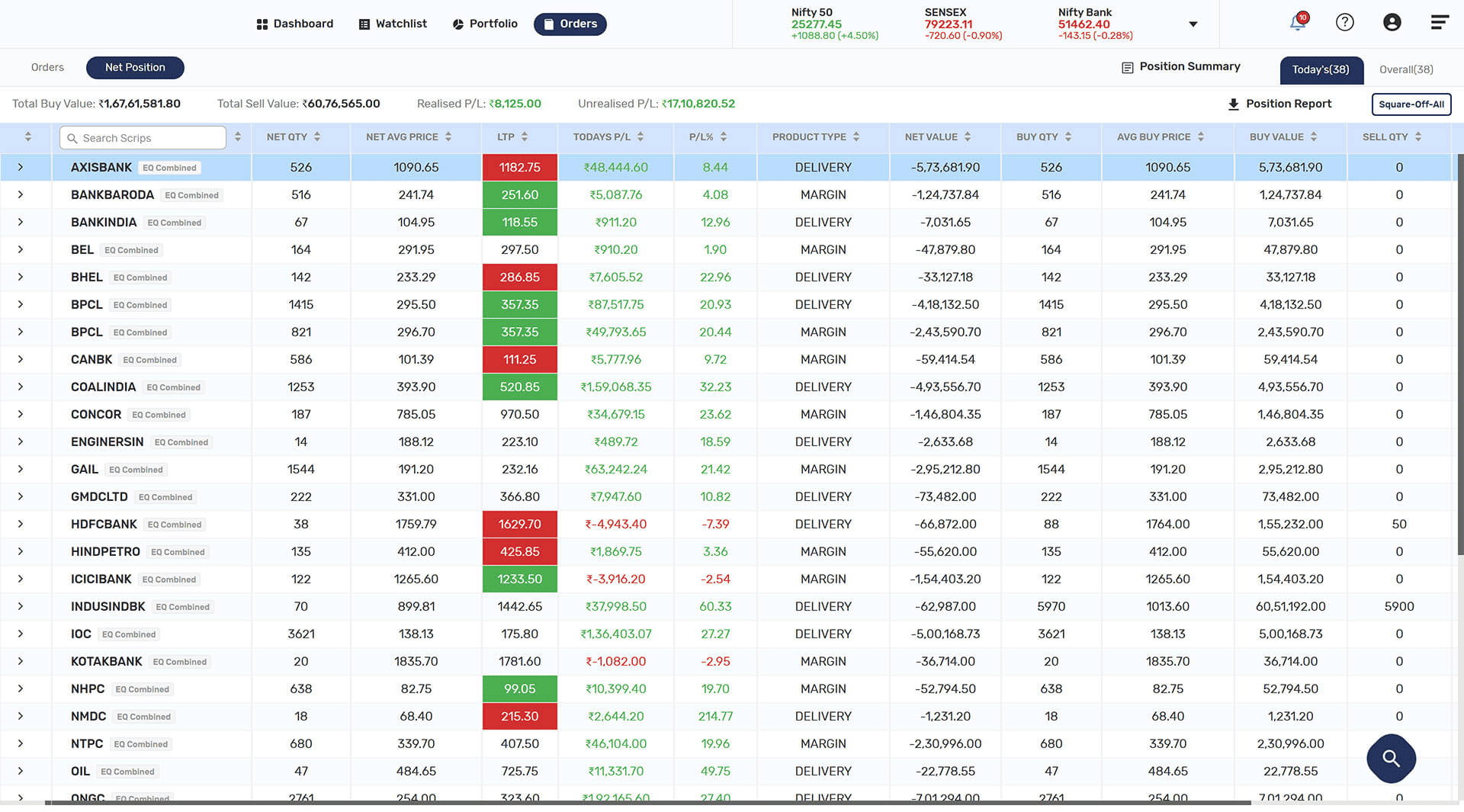
- Net Position: You can see all the Positions by clicking on “Net Position” option. You will be able to see your Profit and Loss Mark to Market Value (MTM) of the scrip. You can also Square-off all open orders at the same time by using the “Square Off All” option in the Net Position Window.
- Position Summary: The user can also see the position summary and can download position report.
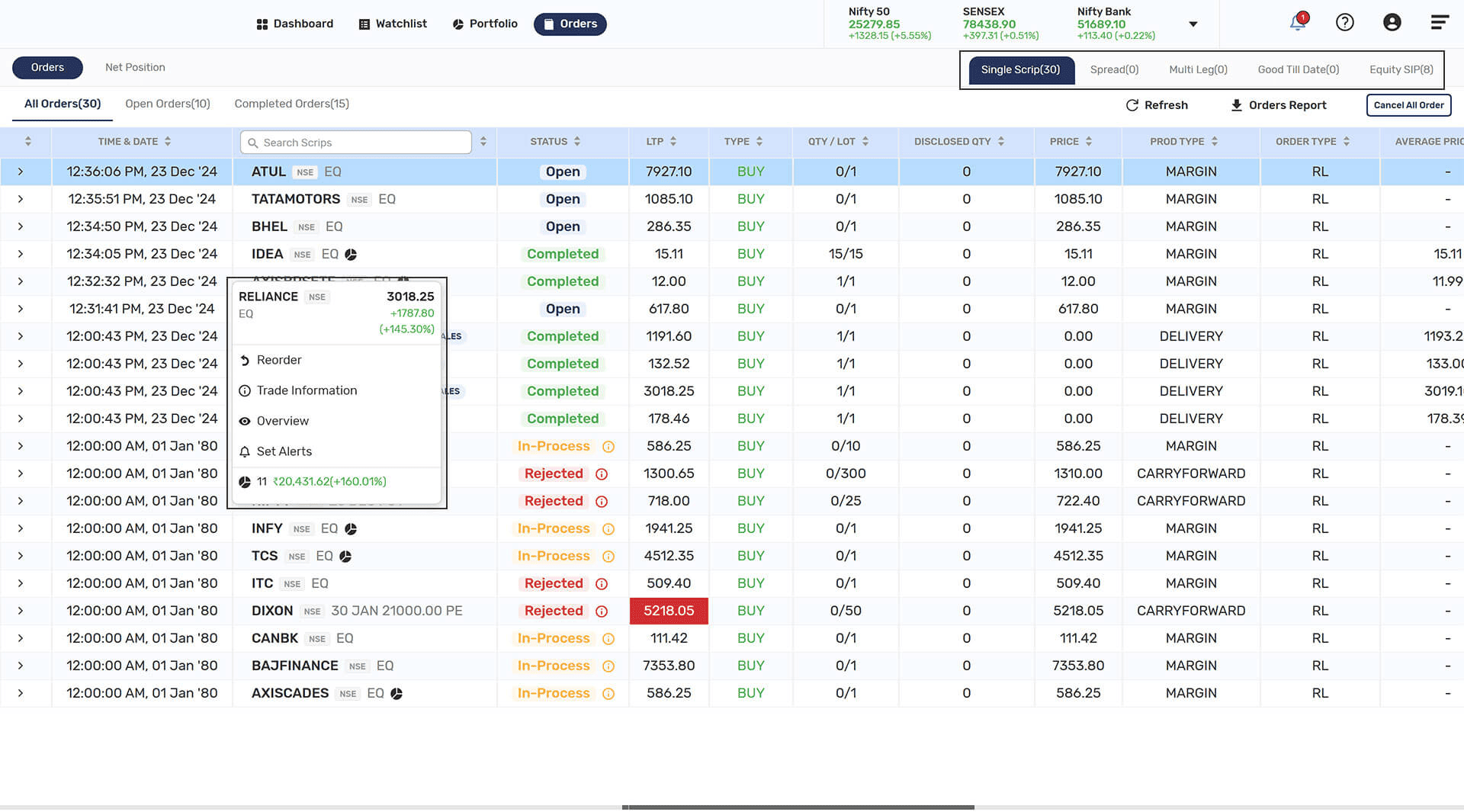
- You can select and view orders by different Order Types like Single Scrip Orders, Spread Orders, Multileg Orders, Good till Date Orders and Equity SIP orders.
- In the order window, right top side there are three options which are as follows:
- Single Scrip: The orders for single scrips are shown in this window, if the user wants more options for a particular scrip, they can right click on it to see the following options:
- Reorder: You can repeat the order for the same scrip.
- Trade information: The trade details will be displayed such as order time, order no., quantity, and price.
- Overview: Overview, analysis, events, option chain, futures, and company info displayed here.
- Set Alerts: The user can set alerts for their orders.
- Good Till Date (GTD): User can view their set GTD orders here.
- Equity SIP: The user can view their Equity SIP orders here; the user can right click on scrip for more options:
- Single Scrip: The orders for single scrips are shown in this window, if the user wants more options for a particular scrip, they can right click on it to see the following options:
- Modify Order: The user can modify the Equity SIP order.
- Cancel Order: The order can be cancelled.
- Order History: The order history will be shown.
- Overview: Overview of the Equity SIP scrip.
- Set Alerts: The user can set alerts for Equity SIP scrip
The orders tab has three sections: Open orders, Completed orders and All orders.
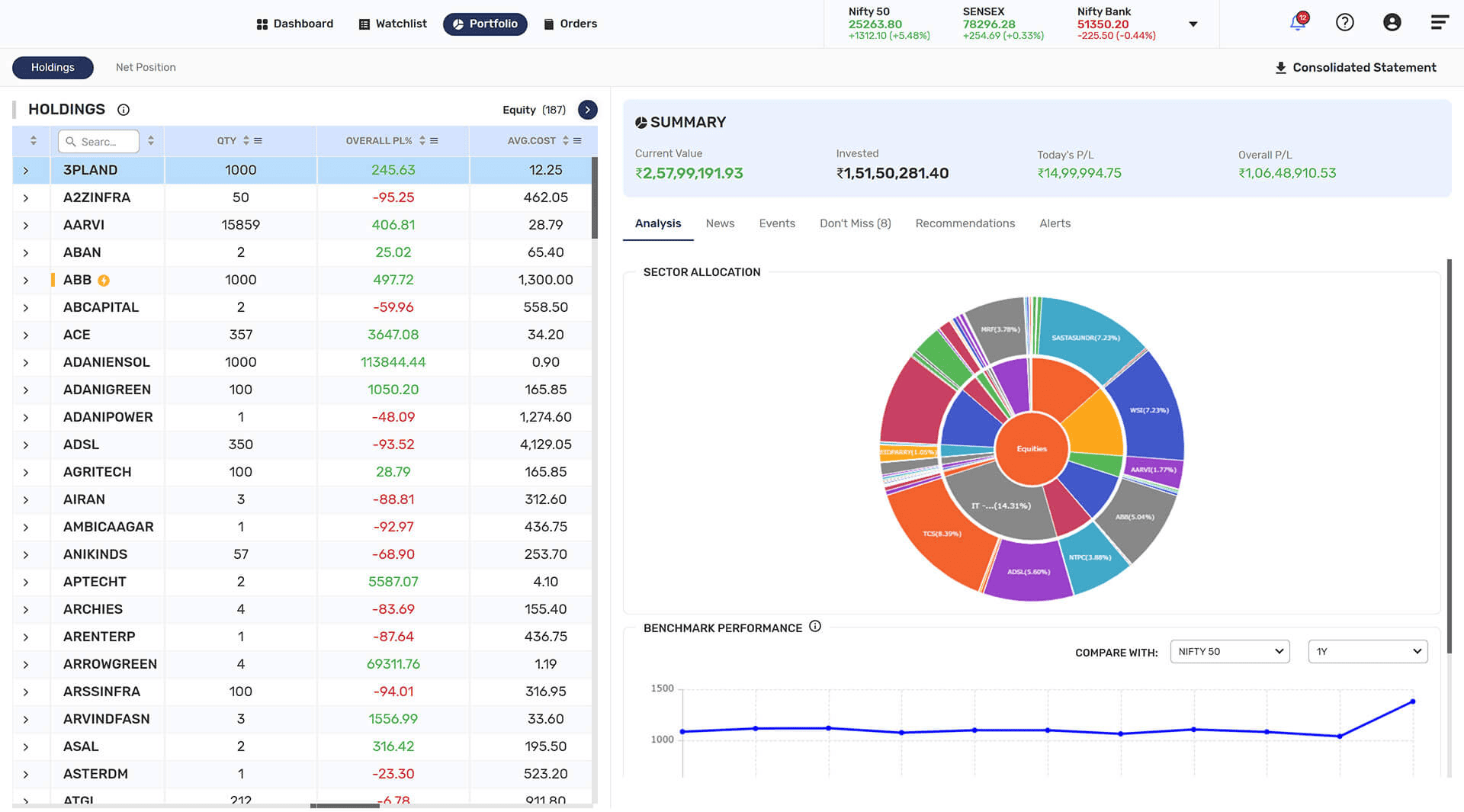
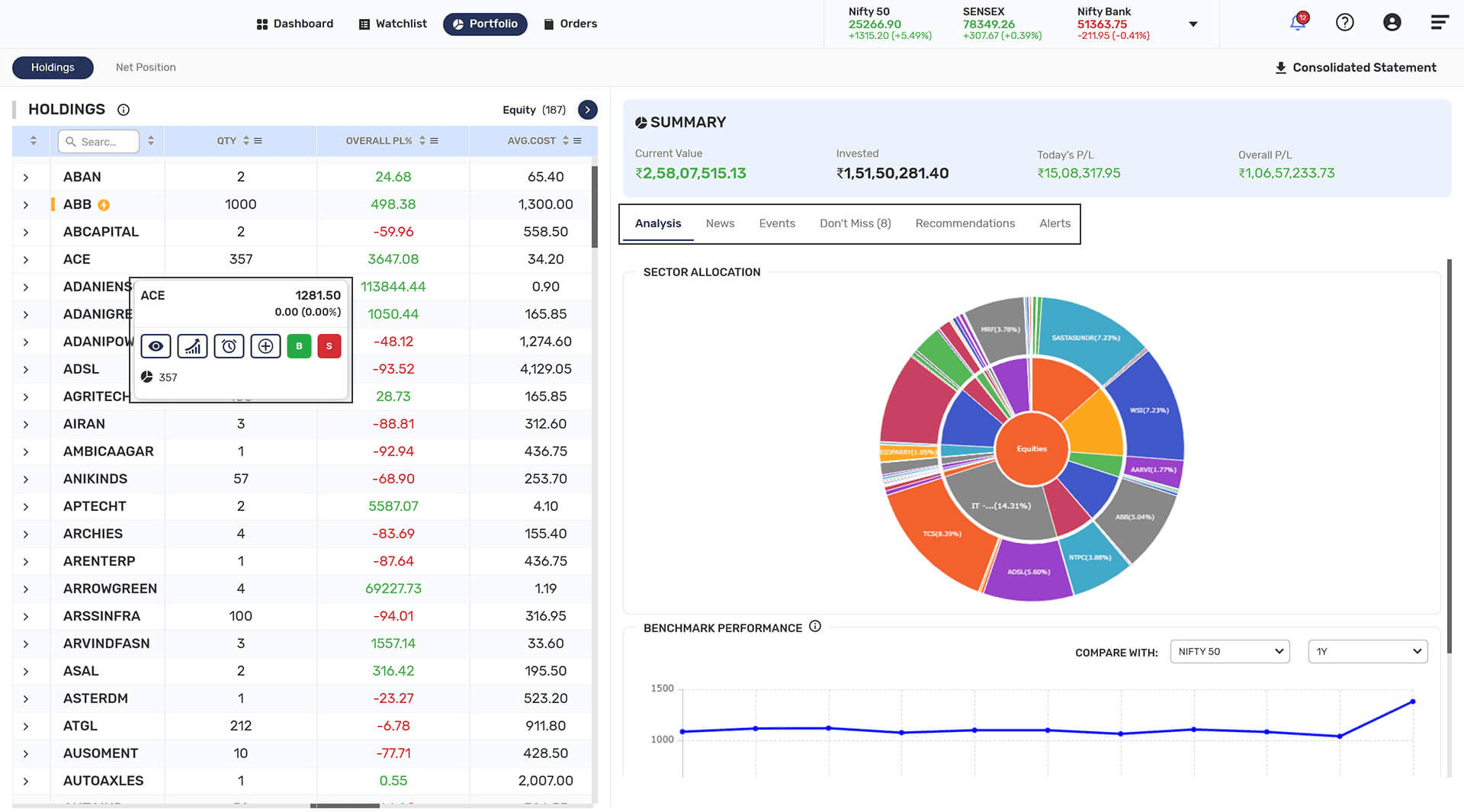
- You can get complete insights of your portfolio such as Current Value, Overall Profit and Loss, Day’s Profit and Loss, Realised Profit and loss, unrealised profit and loss, as well as the Invested Value.
- HOLDINGS: You can see all the stocks that you hold in your demat account. This also shows the current value of your holdings along with the actual value you invested in the holdings.
- You will get insights of your holdings:
- Don't Miss: Get Real time update on any price based /Recommendation scrips from holdings.
- News: get all news related to scrips in holdings.
- Events: Get update on any upcoming events about the scrips from your holding.
- Analysis: Compare the performance of your scrips from holdings with benchmark indices.
- Recommendations: Any recommendations about the scrips.
- Alerts: Set alerts and get all active and triggered alerts details related scrips of your holding.
- You have the following options when you click on any of your holdings’ scrips:
- More information: It consists of all additional details like available quantity, blocked quantity, free quantity, and pledged quantity along with portfolio analyser and buy-sell options.
- Overview: You can see scrip overview details.
- Set Alerts: Set alert based on various parameters.
- Net Position: In Net Position, you can see all the details related to your position like total buy value, total sell value, and realized and unrealized profit and loss. You can add more quantity, square off position and convert your position. You can see the summary of your positions.
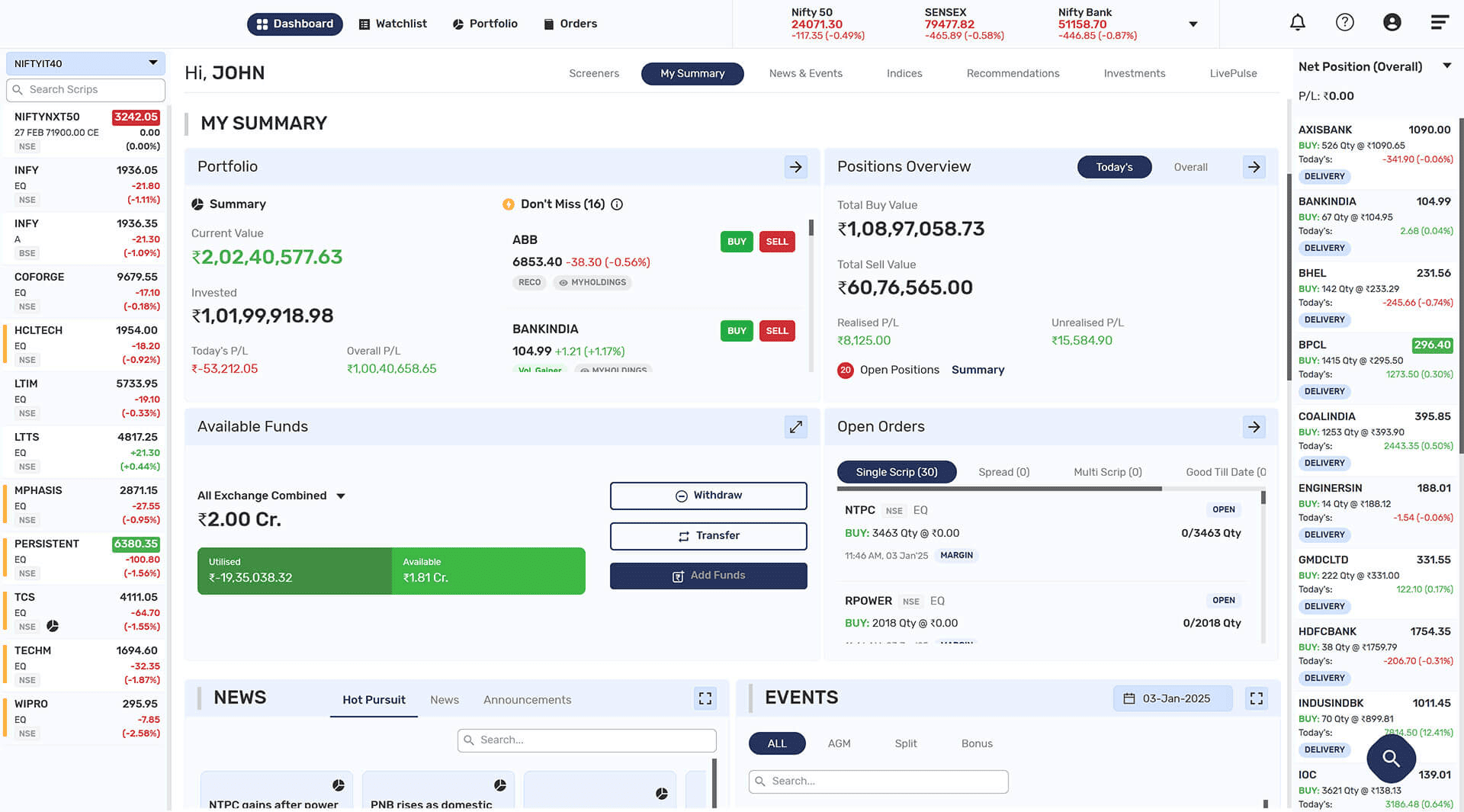
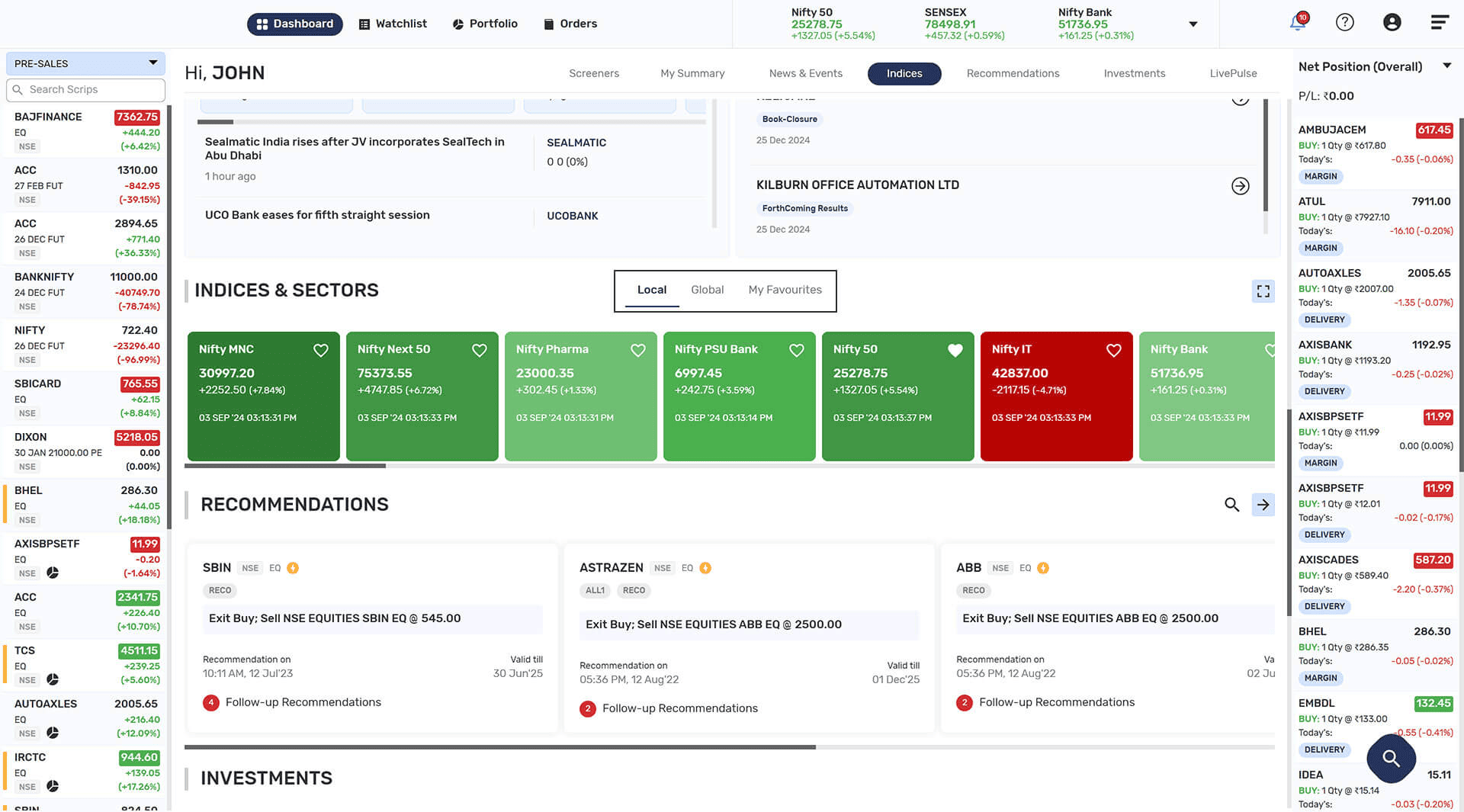
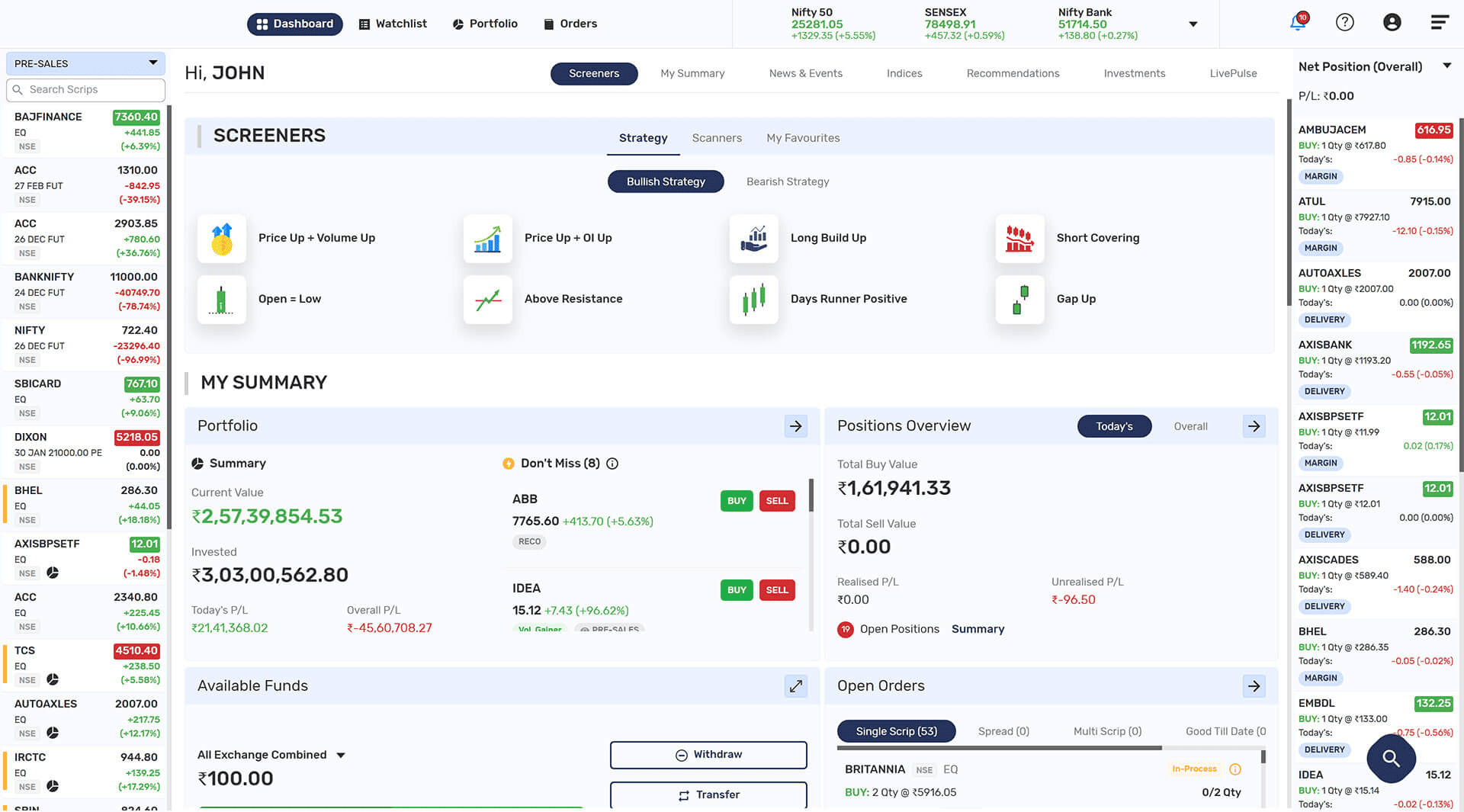
- You can get comprehensive view of your portfolio, funds, open orders, position and get access to indices, news & events, scanners and other investment products.
- MY SUMMARY: This section has the summarised overview about available funds, open order, and portfolio positions.
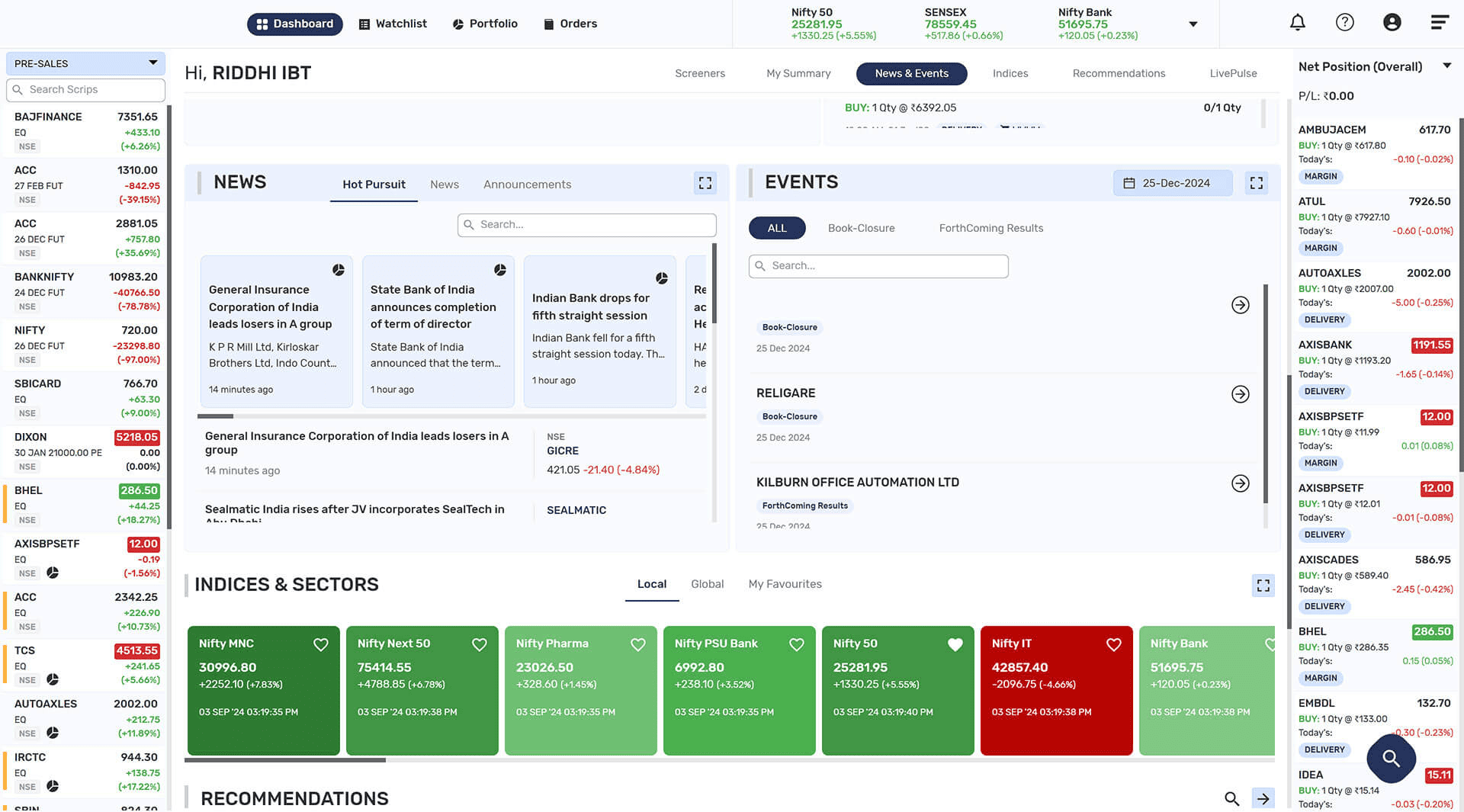
- INDICES: You can view Local & Global indices, and You can add them as your favourites. You can view indices constituents by clicking on any indices. You can create an indices constituent watchlist. You can view all futures contracts, indices overview and option chain.
- SCREENERS: The strategies, scanners like price-based, volume-based, OI-based, and your marked favourites are displayed.
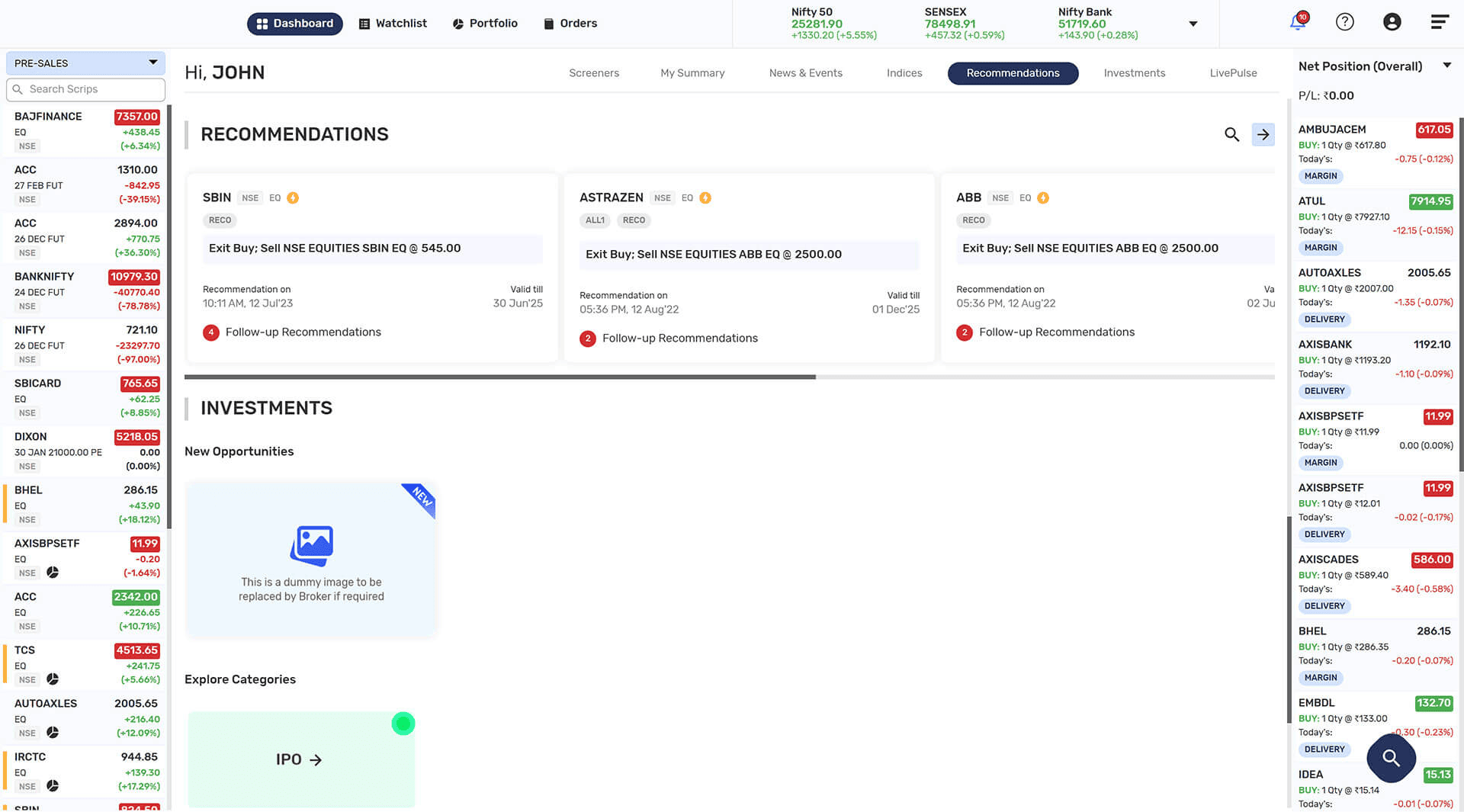
- RECOMMENDATIONS: You can see broker recommended scrips under recommendation tab.
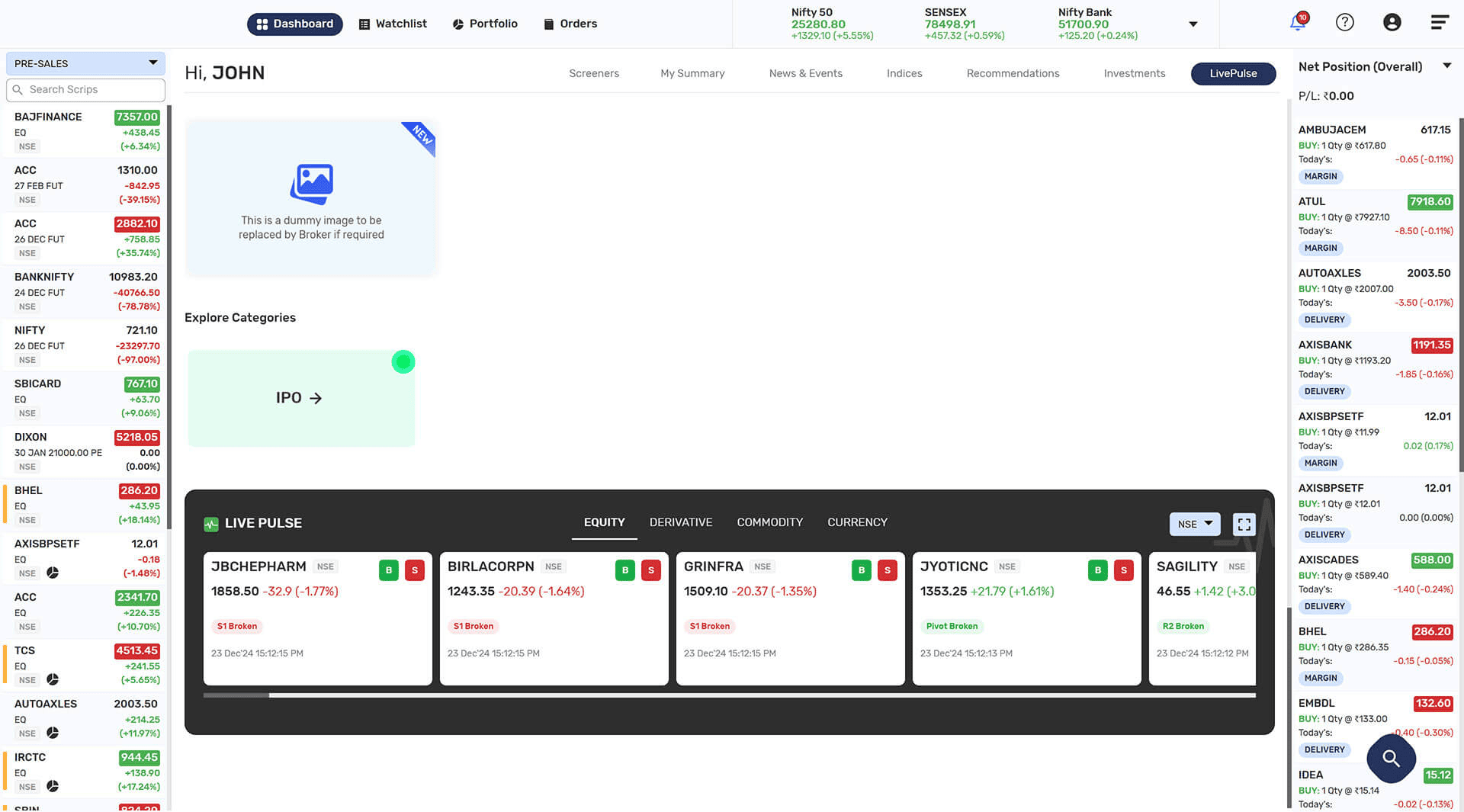
- LIVE PULSE: you can get a real time market opportunity with live pulse. For more information, please visit: Live Pulse
- NEWS & EVENTS: You can view the latest news and upcoming events of scrip. You can see all the hot pursuit, Announcement and much more from news and event tab.
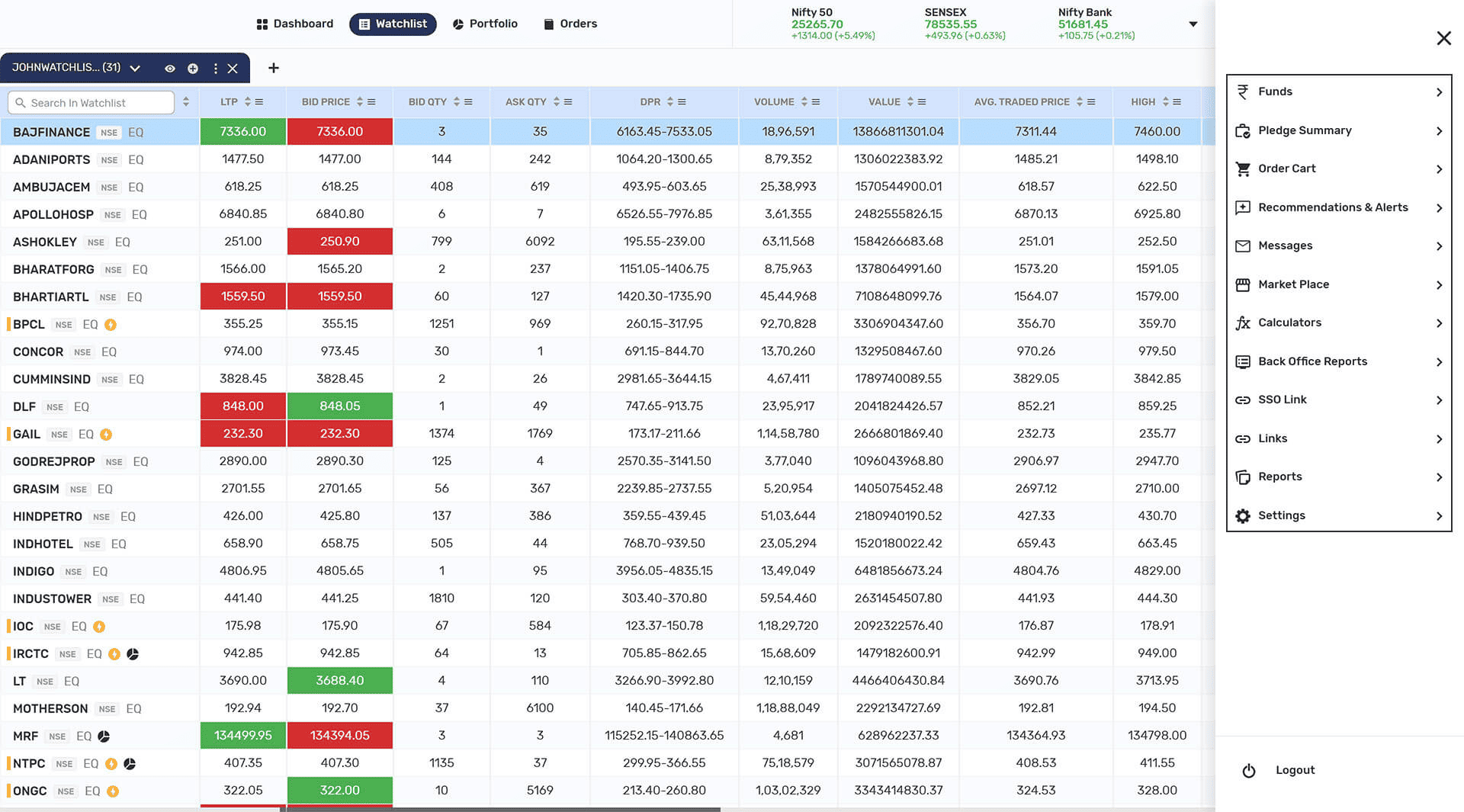
- Hamburger: (
 ) Hamburger-Menu has options as follows:
- Recommendations and alerts: Scrips suggested according to the current market.
- Calculator: Calculators like option value, future fair value, Span Margin, Pivot Point, and Fibonacci are available to use.
- Funds: You can view the fund summary from here. You can also make fund transfer and withdrawal requests.
- Back-Office Reports: The trading reports are available in the back-office report.
- Links: You can access Backoffice reports and other investment products here. The broker can sets different links in this like the social media, Exchange sites, Norms etc.
- Reports: Get access to back office or broker reports.
- Pledge Summary: There are two sections in this.
- Pledge: you can select the scrips from the holdings and can click on pledge.
- Report: In this section pledge reports are displayed.
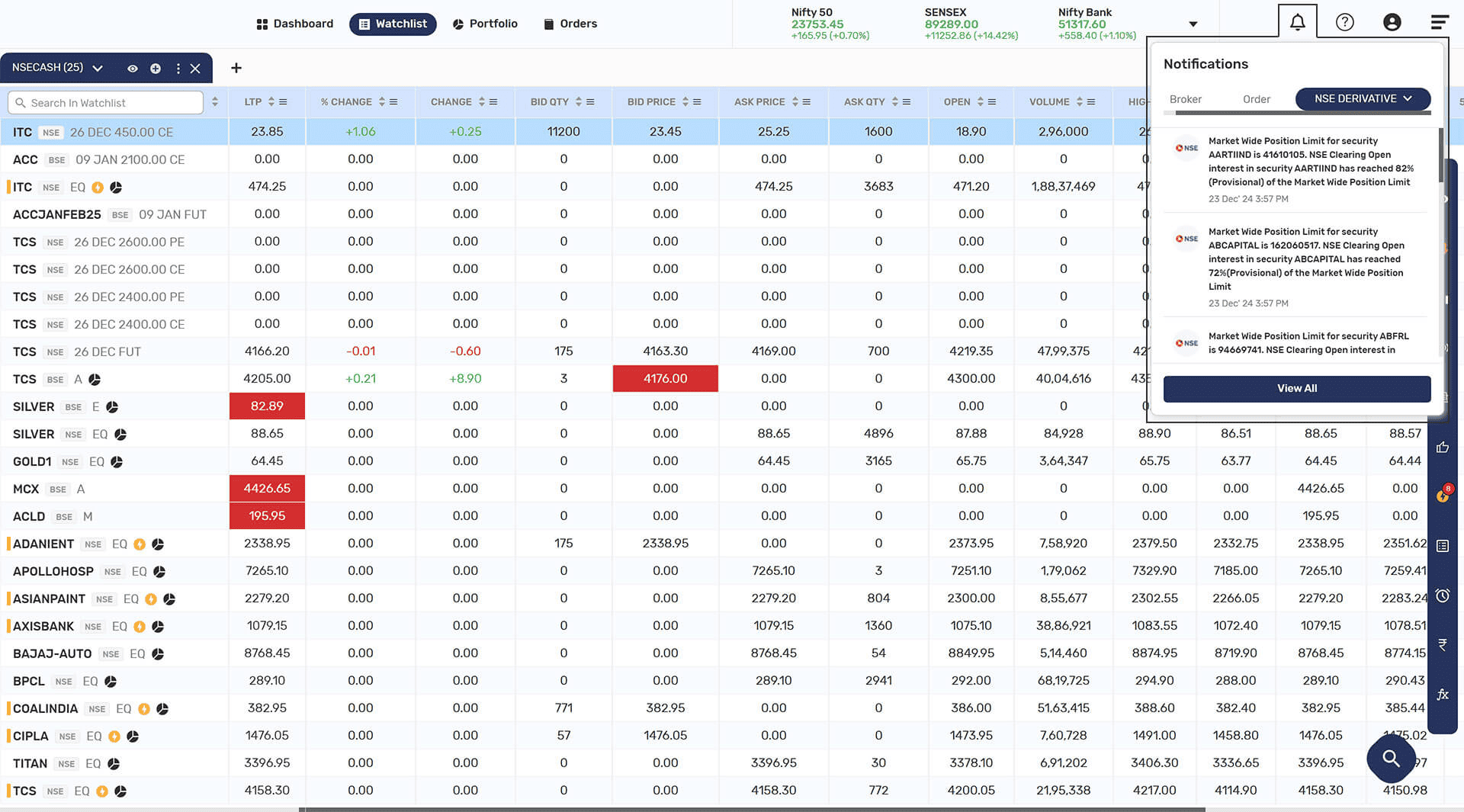
- Notifications: (
 )
)
- Broker: When the broker sends any notification to the user.
- Order: You can see scrip overview details.
- Exchange Notification: Notifications sent by NSE Exchanges.
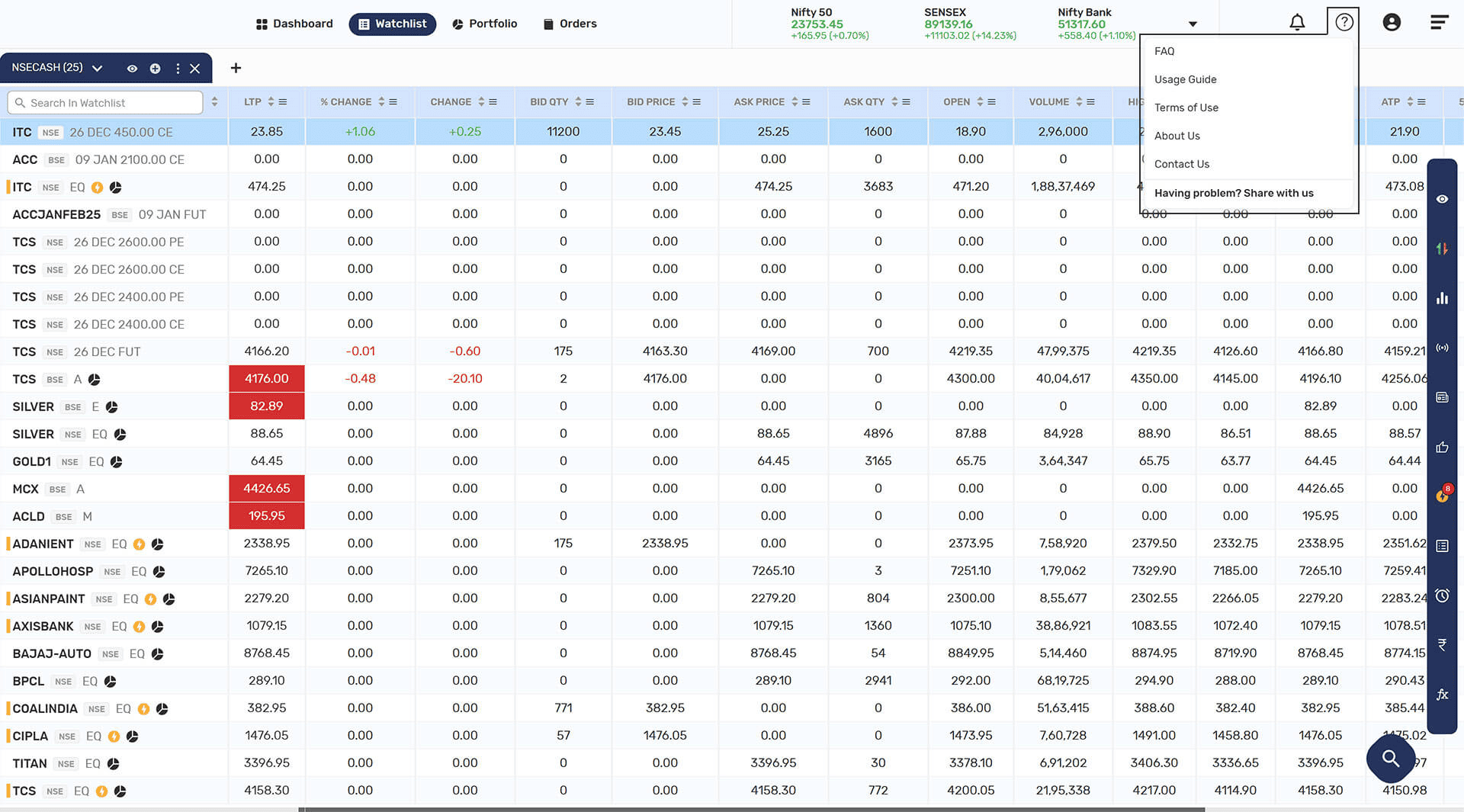
- Help: (
 )
)
- About Us: You can learn more about the broker here.
- Contact Us: You can see the contact details of the broker here.
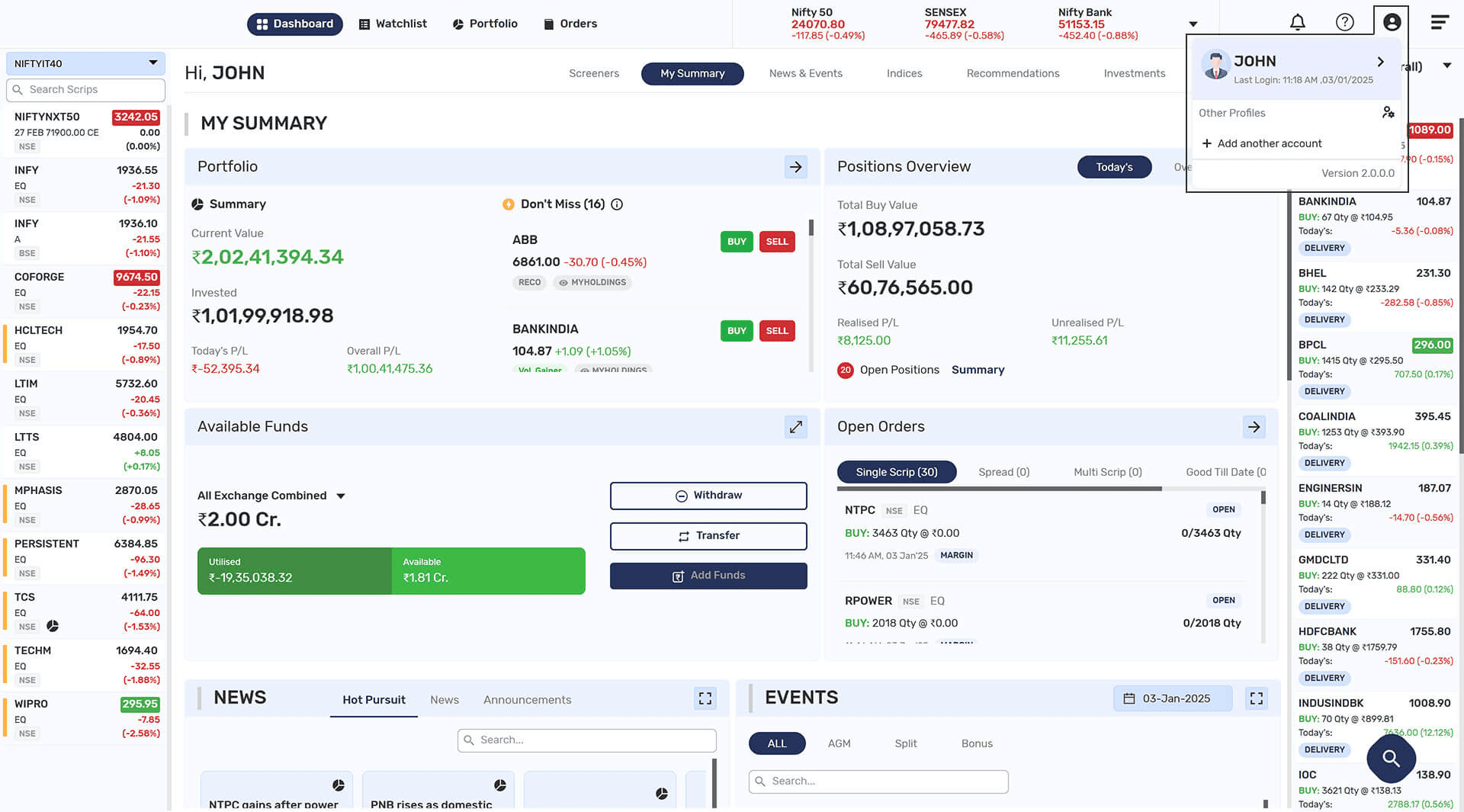
- Add Another account: You can add or login to your another account.
- User Profile: (
 ) This section consists of the following:
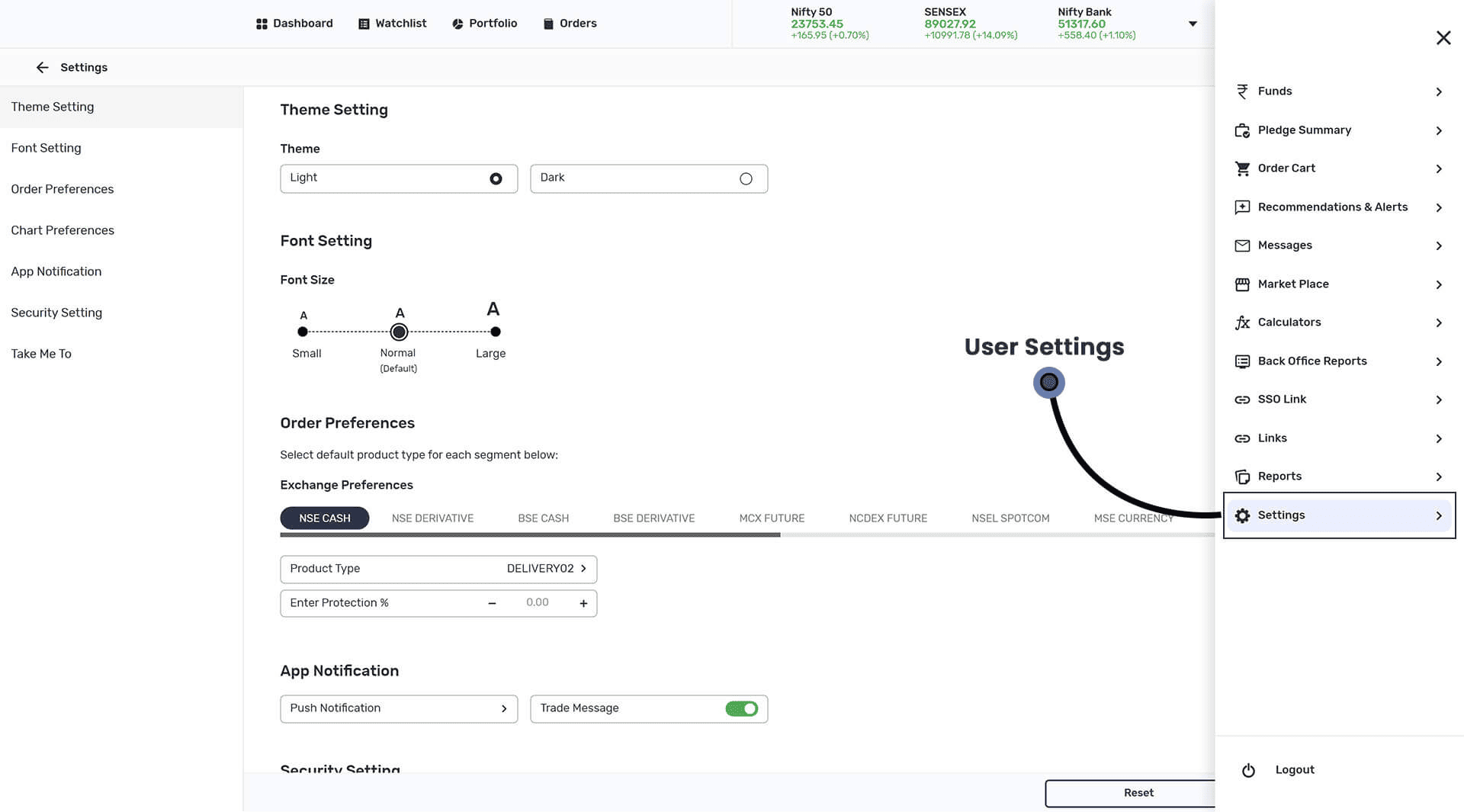
- User Settings: In this you can modify the configurations.
- Font Setting: You can change the font here. You can set the font to Small, Normal and Large. Order Preferences
- Order Preferences: You can Select default product type for each segment.
- App Notifications: You can turn on or off app notifications from here.
- Security Settings: You can change your Mpin and password
- Take me to: you can select your default landing screen - Logout.
- Theme: You can also change into dark or light theme.
- User Settings: In this you can modify the configurations.